Intro
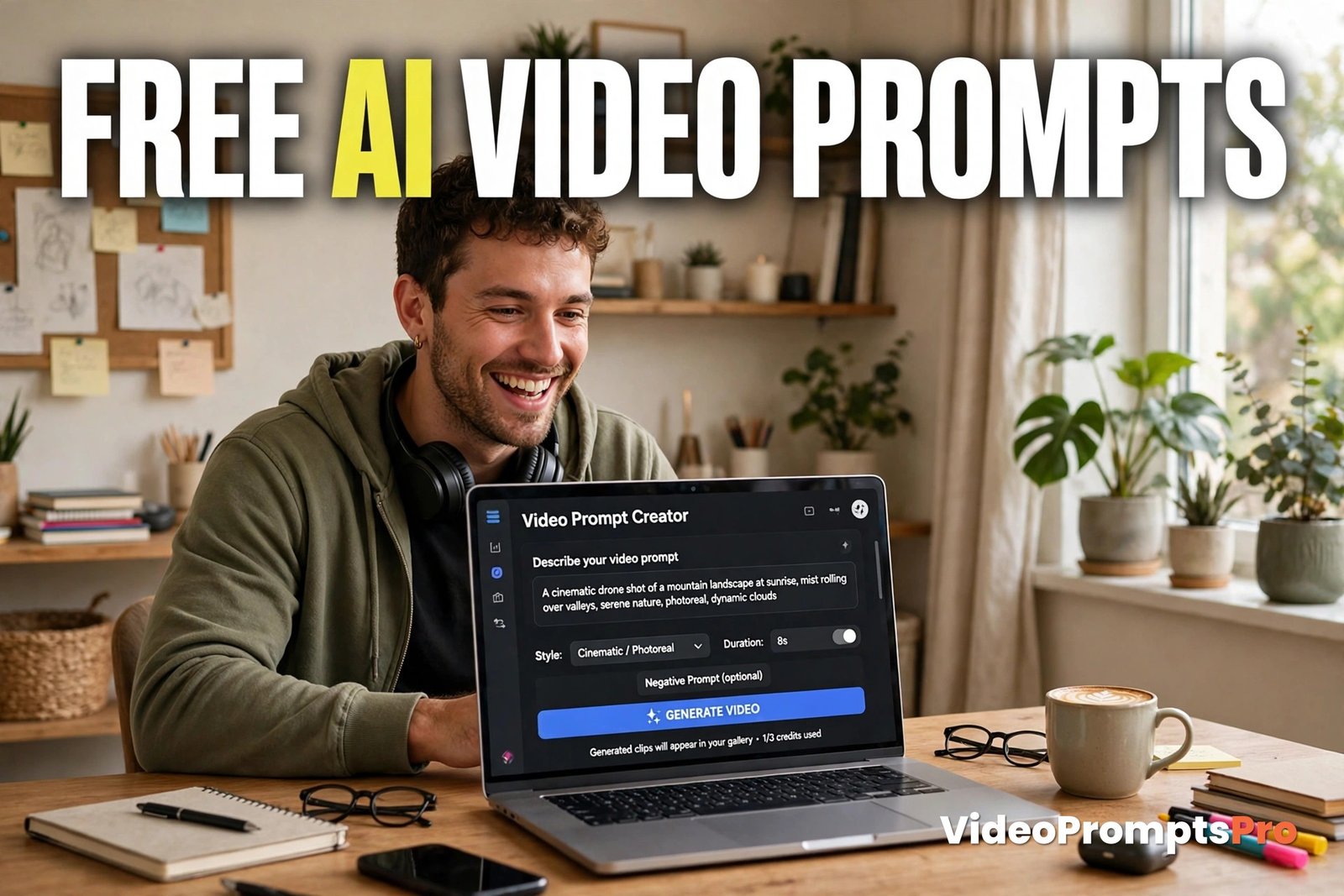
Want better AI video clips without paying for another tool? A free AI video prompts generator online can help you get there, fast.
You type a short idea, pick a tool and a style, and you get a clear, plain-text prompt you can paste into your video tool. No sign-up, no credit card, and no long learning curve.
In this guide, you will learn how our free AI video prompts generator online works, how to use it step by step, and how to turn one simple idea into a clip that actually looks like what you imagined.
What Is a Free AI Video Prompts Generator Online?
A free AI video prompts generator online is a small writing helper that runs in your browser. It does not make the video for you. It writes the prompt that tells a video tool what to create.
That distinction matters. Good video tools still need a good prompt. If your prompt is vague, the clip will be vague too. If your prompt names the subject, the action, the setting, the camera, the lighting, and the style, the video tool has something clear to work with.
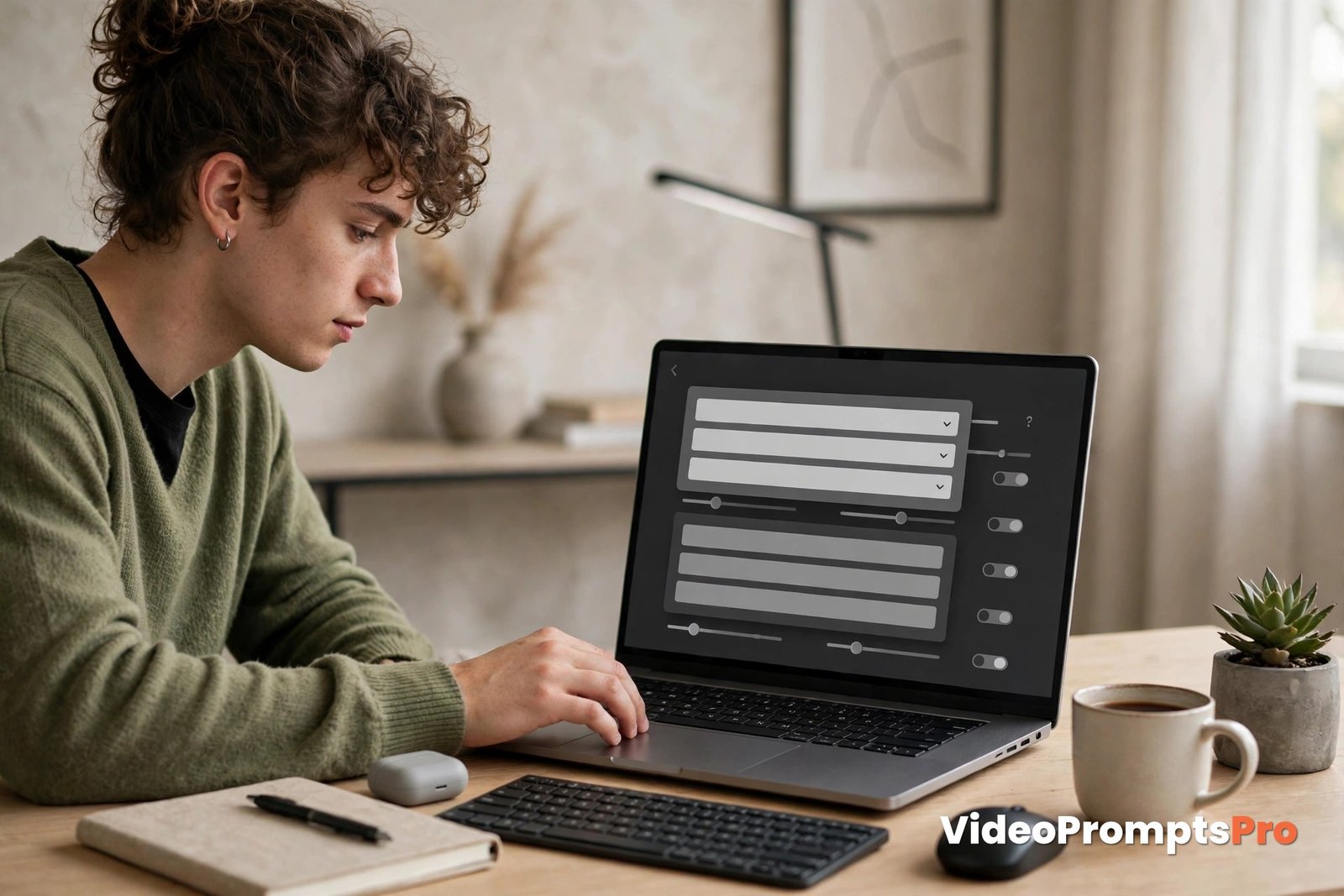
Our free AI video prompts generator online at VideoPromptsPro keeps this simple. You enter a text idea, choose an AI tool, choose a style, and choose a duration. That is all. There is no image upload, no image-to-video mode, and no video rendering inside the generator itself. It writes prompts. Your chosen video tool renders the clip.
The supported AI models cover the tools most creators use today: Flow, Grok, Veo 3, Gemini, Sora, and Kling. Each tool has its own strengths, but they all respond better to the same basic structure: one clear subject, one action per clip, and a setting that the camera can actually show.
Because the output is a plain-text prompt, you can paste it into any video tool. You are not locked into one app. You can test the same idea in Veo 3 for a cinematic look, then try it in Kling for a faster, punchier result, and compare the two. A free AI video prompts generator online makes that testing easy.
How to Use the Generator Step by Step
Using a free AI video prompts generator online should take less than a minute. Here is the exact flow for ours, and it works the same way for most free prompt tools.
Step 1: Start with one short idea
Do not write a paragraph. Write one idea in plain words, such as a street-food stall at dusk, a product shot for a handmade candle, or a traveller watching sunrise from a mountain viewpoint. One idea keeps the prompt focused. If you add three ideas at once, the video tool will try to show all three, and none of them will look good.
Step 2: Pick the AI tool you will paste into
Choose the video tool you plan to use, for example Veo 3, Kling, Sora, Flow, Grok, or Gemini. This matters because each tool handles motion, length, and style a little differently. A prompt written for a cinematic Veo 3 clip may need a shorter, simpler version for a quick social clip, and the generator shapes the wording for the tool you pick.
Step 3: Pick a style that matches the clip
Style is not decoration. It changes how the whole clip feels. A cinematic style suits a travel scene or a food film. A clean, bright style suits a product clip. A playful style suits a short social video. Pick the style before you generate, so the prompt does not mix two moods in one clip.
Step 4: Pick a duration and think in short clips
Most free video tools work best with short 5–10 second clips. That is not a weakness. It is how short-form video works. One strong action in a short clip beats a long, crowded scene every time. If you need a longer video, build it from several short clips, each with its own prompt.
Step 5: Generate, read, then paste
Read the generated prompt before you paste it. Check that the subject is clear, the action is single and visible, and the camera and lighting make sense. Then copy the plain-text prompt into your video tool, set the aspect ratio you need, such as 9:16 for vertical shorts or 16:9 for wide video, and generate the clip.
One Full Worked Example: From a Short Idea to a Ready Prompt
Let us walk through one idea from start to finish. This is the part most guides skip, and it is where a free AI video prompts generator online earns its place.
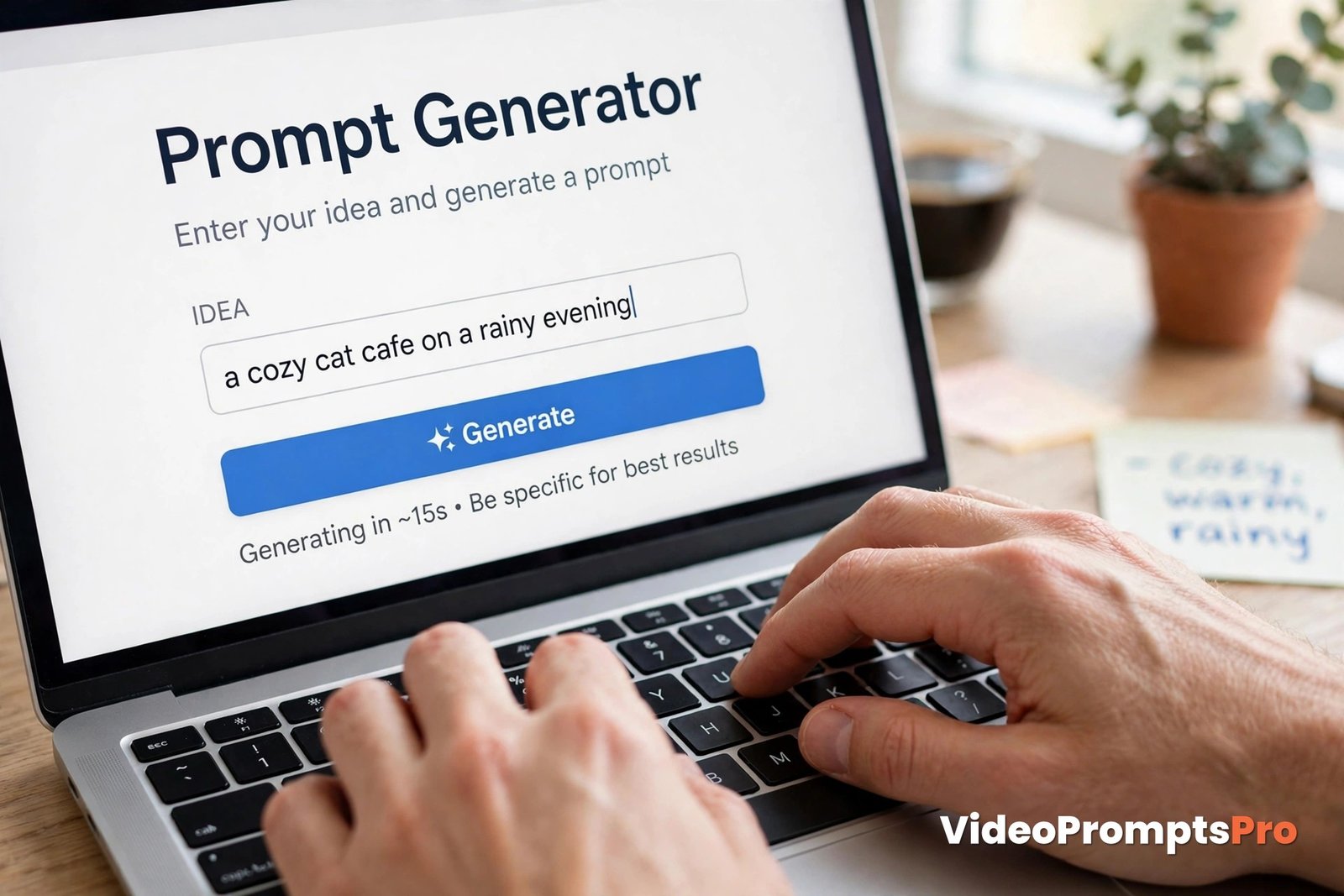
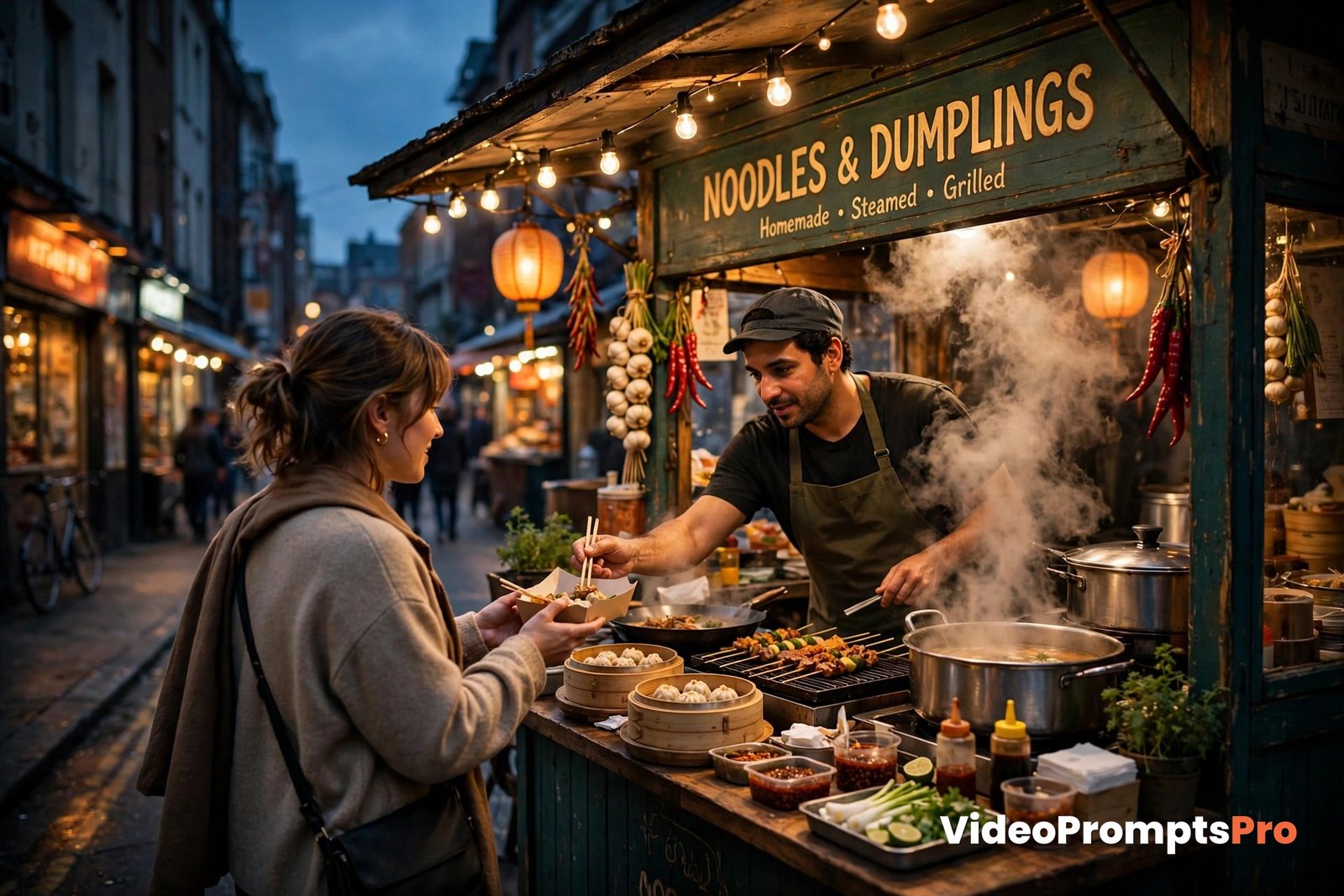
The idea is simple: a cosy street-food stall at dusk, with steam rising and a vendor serving a customer. That is the whole idea. You do not need to write the camera work yourself. You type the idea, choose Veo 3 as the tool, pick a cinematic style, and choose an 8 second duration.
What comes out is a structured prompt. It keeps the subject, action, setting, camera, lighting, and style in one readable block. Here is the kind of prompt you would get:
A cosy street-food stall at dusk, warm lights glowing and steam rising from the cooking food. A friendly vendor hands a hot plate to a smiling customer. Slow, steady camera push-in, warm evening light, rich colour, cinematic style, 8 seconds, 16:9.Now read it like a director, not like a reader. The subject is the stall. The action is handing over the plate. The setting is dusk, with warm lights and steam. The camera moves slowly inward. The light is warm evening light. Nothing else competes for attention.
How would you adjust it? If the clip feels too busy, remove one detail, such as the crowd in the background. If the steam does not show, move it earlier in the prompt and name it clearly. If you want a vertical short instead, change the aspect ratio to 9:16 and tighten the framing to the vendor and the plate. Small edits like these change the result far more than rewriting the whole prompt.
Strengths and Limits of Free Online Generators
A free AI video prompts generator online is useful because it removes the hardest part of AI video: starting from a blank box. It gives you structure, it reminds you to include camera and lighting, and it helps you avoid the vague prompts that lead to random clips.
They are also honest tools, and it helps to know their limits before you judge them. A free prompt tool writes prompts. It does not render video. The video tool you paste into has its own credits, limits, and quality settings. If that tool runs out of credits, that is a limit of the video tool, not a failure of the prompt generator.
Some rival free tools ask for an email before you can generate, or cap how many prompts you can make each day. A daily limit is normal for a free tool, and it is worth checking before you plan a big batch of clips. Our free AI video prompts generator online keeps the barrier low: open it in your browser, type your idea, and generate. You can then spend your video credits only on prompts you have already read and liked.
Another limit is taste. A generator can structure your idea, but it cannot decide what you want to say. If your idea is unclear, the prompt will be a well-written version of an unclear idea. That is why the step above, reading the prompt before you paste it, matters so much. You are still the director. The generator is your first assistant, not your replacement.
For a broader look at how other free prompt tools are described, you can compare guides such as this free video prompt tool guide and this video prompt generator overview. Use them to understand the category, then come back to a generator whose output you can paste anywhere.

Common Mistakes and Fixes
Most weak clips come from a handful of repeatable mistakes. Fix the prompt, and the clip usually improves on the next try.
Mistake 1: Too many actions in one clip
A prompt that asks a person to walk in, wave, sit down, and laugh, all in 8 seconds, will look rushed or confused. Fix it by keeping one action per clip. Make the next action a second clip, and edit the clips together.
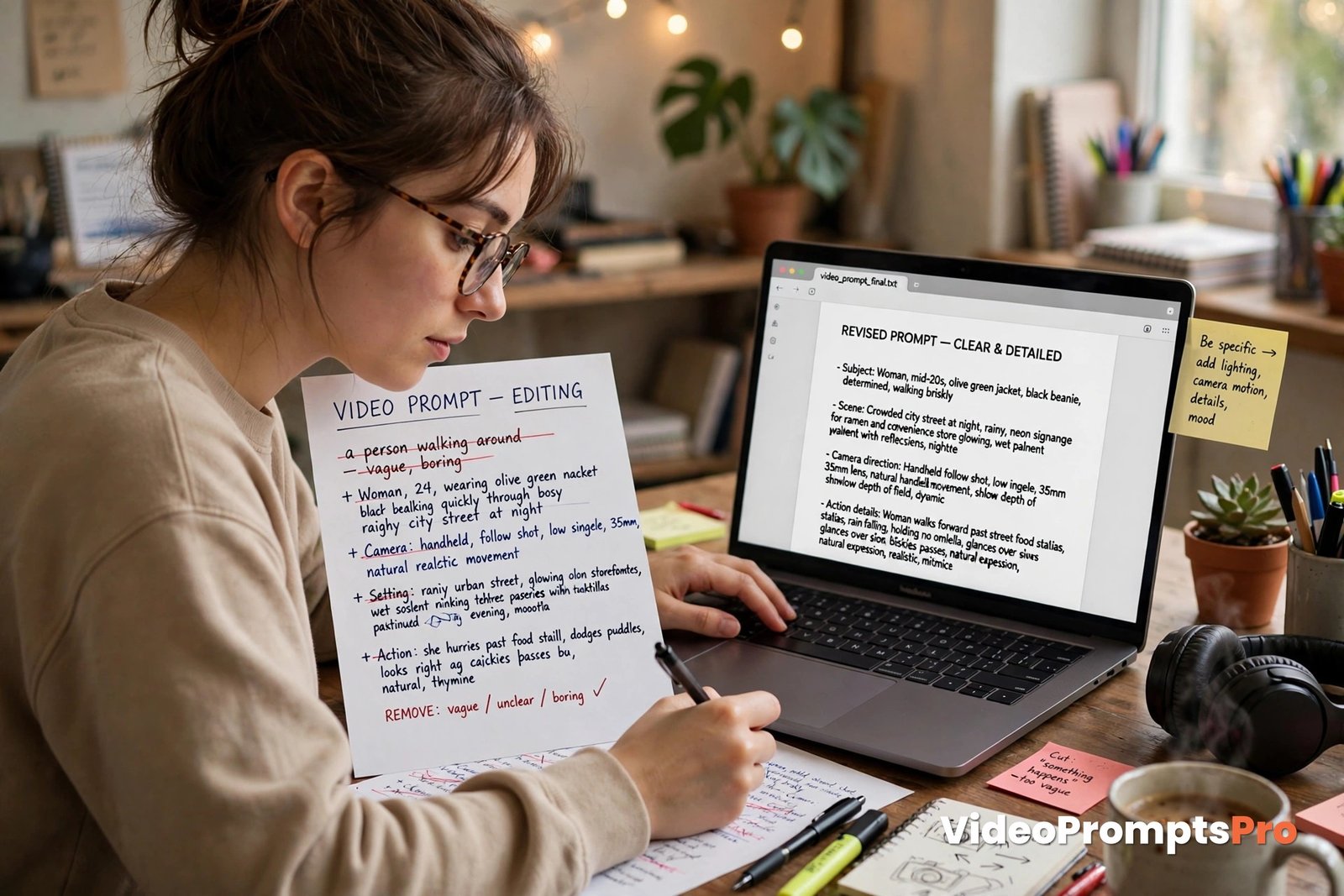
Mistake 2: No camera direction
A prompt with no camera note leaves the framing to chance. Fix it by naming one camera move, such as a slow push-in, a steady wide shot, or a gentle pan. One move is enough. Two moves in a short clip often fight each other.
Mistake 3: Vague lighting and style
Words like nice, good, and beautiful do not help a video tool. Fix them with concrete words: warm evening light, soft daylight, bright studio light, cinematic style, or clean product style. Concrete words give the tool something to render.
Mistake 4: Copying a prompt without reading it
A prompt that looks good on screen can still miss your idea. Fix this by reading every generated prompt once, checking the subject and action against your original idea, and editing one or two words before you paste. That 20 second check saves wasted video credits.
Pro Tips for Free Clips That Look Paid
Start with the end use. A clip for a vertical short needs a tighter frame than a clip for a wide YouTube video, so set the aspect ratio first and write the prompt around it. A 9:16 clip should focus on one subject close to the camera, while a 16:9 clip can hold a wider scene.
Reuse what works. When a prompt from a free AI video prompts generator online gives you a clip you like, save the prompt text, not just the video. Change only the subject or the setting next time, and keep the camera, lighting, and style that already worked. This is how creators build a consistent look without paying for a course.
Batch your ideas, but test one at a time. Write five ideas, generate five prompts, then render the strongest one first. If it works, render the rest with the same structure. If it fails, fix the structure once, and all five prompts get better.
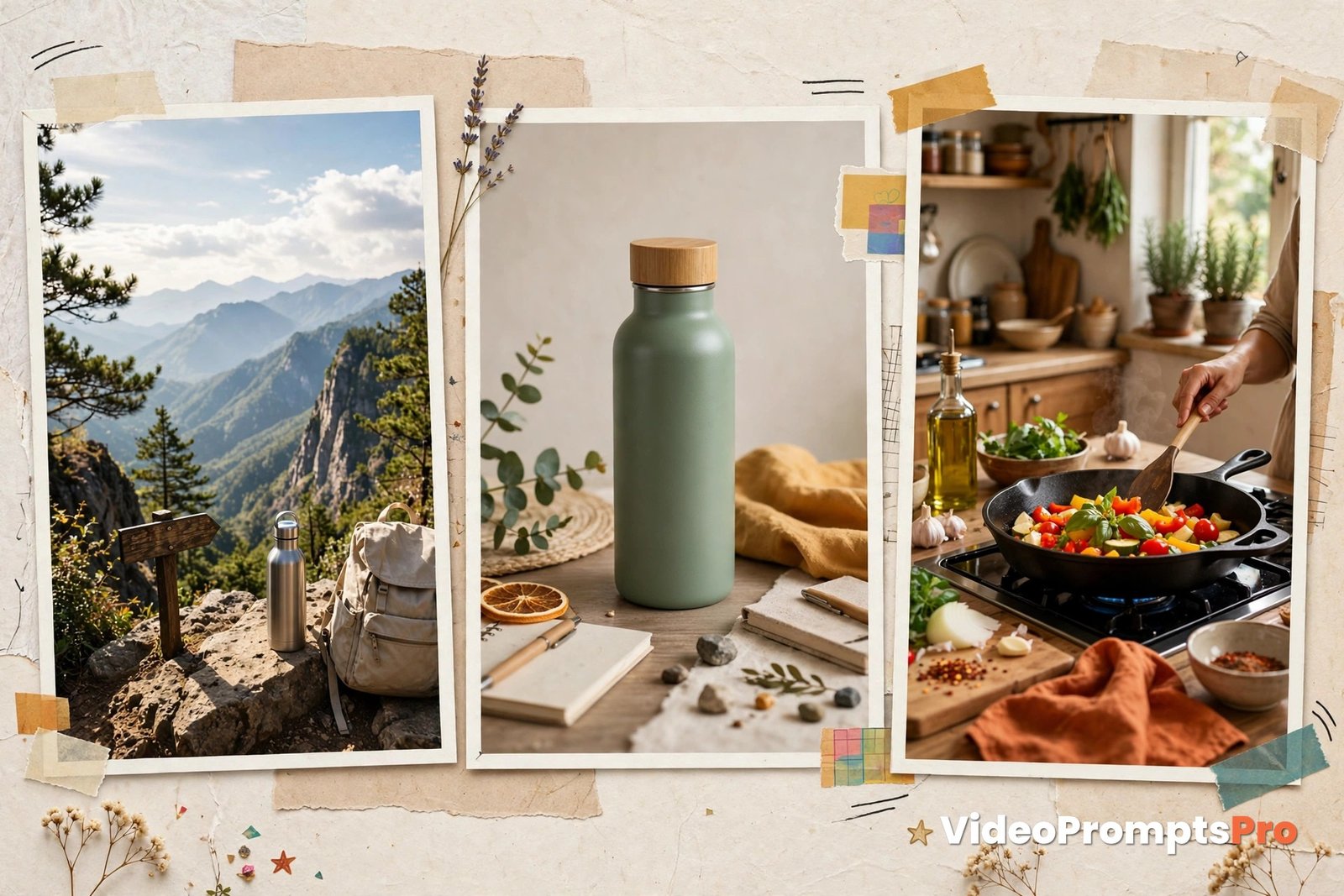
Try free clip ideas that suit short prompts: a travel viewpoint at sunrise, a product turning slowly on a table, a cooking step with steam and close detail, or a simple before-and-after reveal. Each of these works because it has one subject, one action, and one clear setting.
FAQ
Is a free AI video prompts generator online really free?
Yes, the prompt generator itself is free to use in your browser, with no sign-up and no credit card. The video tool you paste into may still use its own credits or limits.
Do I need an account to use it?
No. You can open the free AI video prompts generator online, type your idea, pick a tool, style, and duration, and generate a prompt without creating an account.
Does the generator create the video?
No. It writes a plain-text prompt. You paste that prompt into Veo 3, Kling, Sora, Flow, Grok, Gemini, or another video tool, and that tool renders the clip.
Which video tool should I pick first?
Start with the tool you already have credits for, and match the style to your clip. Veo 3 suits cinematic scenes, while Kling and Sora suit fast, punchy short-form clips.
How long should my video prompt be?
Long enough to name the subject, action, setting, camera, lighting, and style, and short enough to keep one action per clip. Most strong prompts fit in two or three sentences.
Can I use the same prompt in more than one video tool?
Yes. Because the output is plain text, you can paste it into any video tool, compare the results, and keep the version that looks best.
Conclusion
A free AI video prompts generator online will not replace your taste, but it will speed up the part that slows most creators down: turning a short idea into a clear, structured prompt. Type one idea, pick your tool and style, read the prompt, and paste it where it belongs.
Try it with the street-food example above, or with your own idea, and see how much cleaner your next clip looks. For the fastest start, open the AI Video Prompts Generator and generate your first prompt now. You can also browse the text-to-video prompt library for more ideas to adapt in your own words.

SEO Expert & Contant Writer