Intro
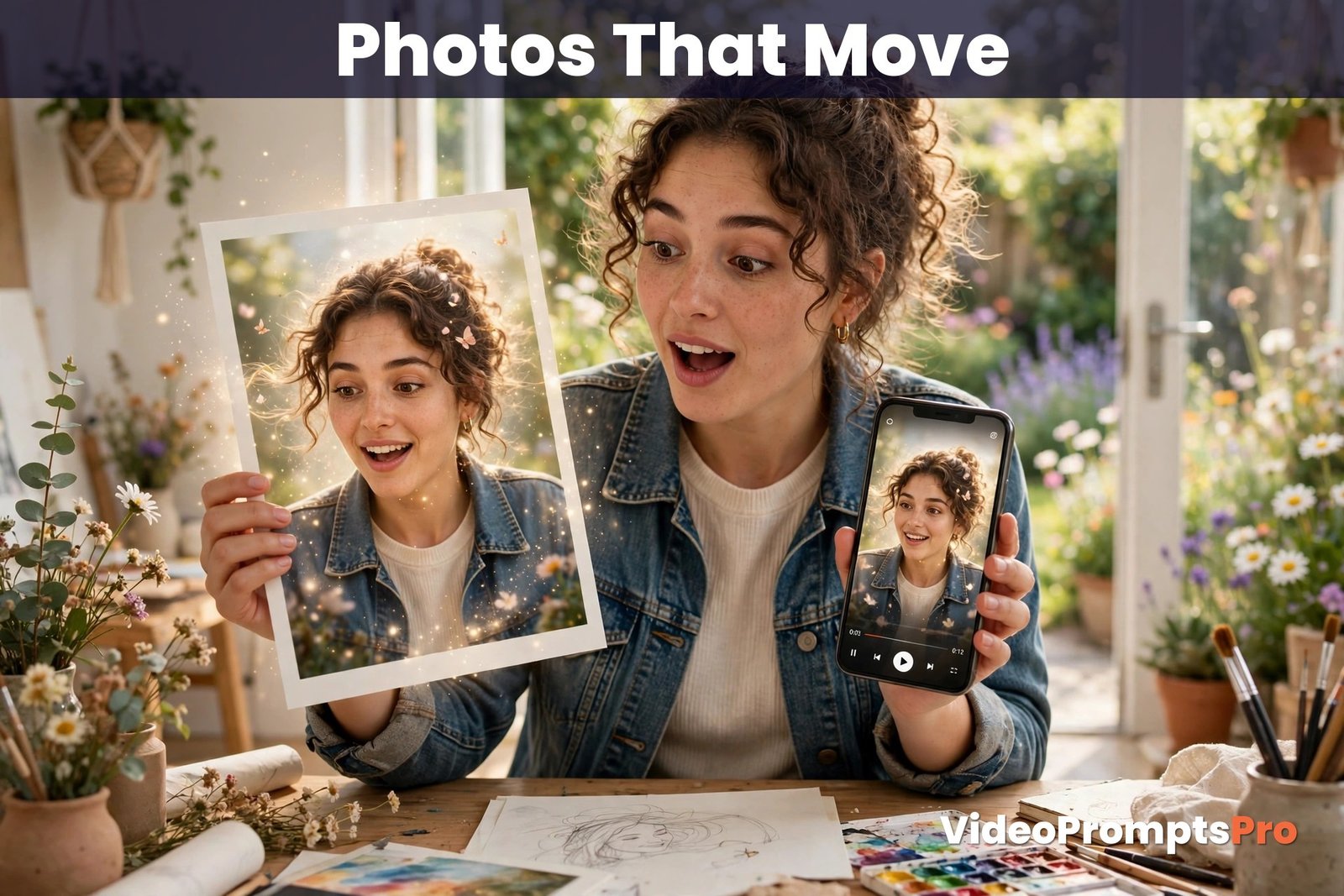
A great photo does not always make a great video. Animate it with a vague instruction, and the face drifts, the product warps, and the scene you loved disappears into motion you never asked for. An ai video prompts generator for image to video prevents this by separating motion from identity.
An ai video prompts generator for image to video fixes that by splitting the job in two. The photo locks the look, and the prompt controls only the motion.
In this guide, you will learn what an ai video prompts generator for image to video does, how to use it step by step, and how to keep a face or a product intact while the scene moves. One full worked example animates a single garden portrait from photo to finished prompt.
What the AI Video Prompts Generator Is and What It Does for Image to Video
An ai video prompts generator for image to video is a simple tool that turns a rough idea into a complete video prompt. For image to video, its job is narrower and more powerful: it does not need to invent the scene, because your photo already shows it. It only needs to describe what should move, how the camera should behave, and what must stay exactly the same.
That split is the whole advantage of image to video. In text to video, the model invents the face, the product and the colours from words, and every generation can look like a different person or a different product. In image to video, the first frame is your photo, so identity, composition and art direction start fixed. The prompt then directs camera movement, subject action, environmental motion and pacing, and nothing else needs inventing.
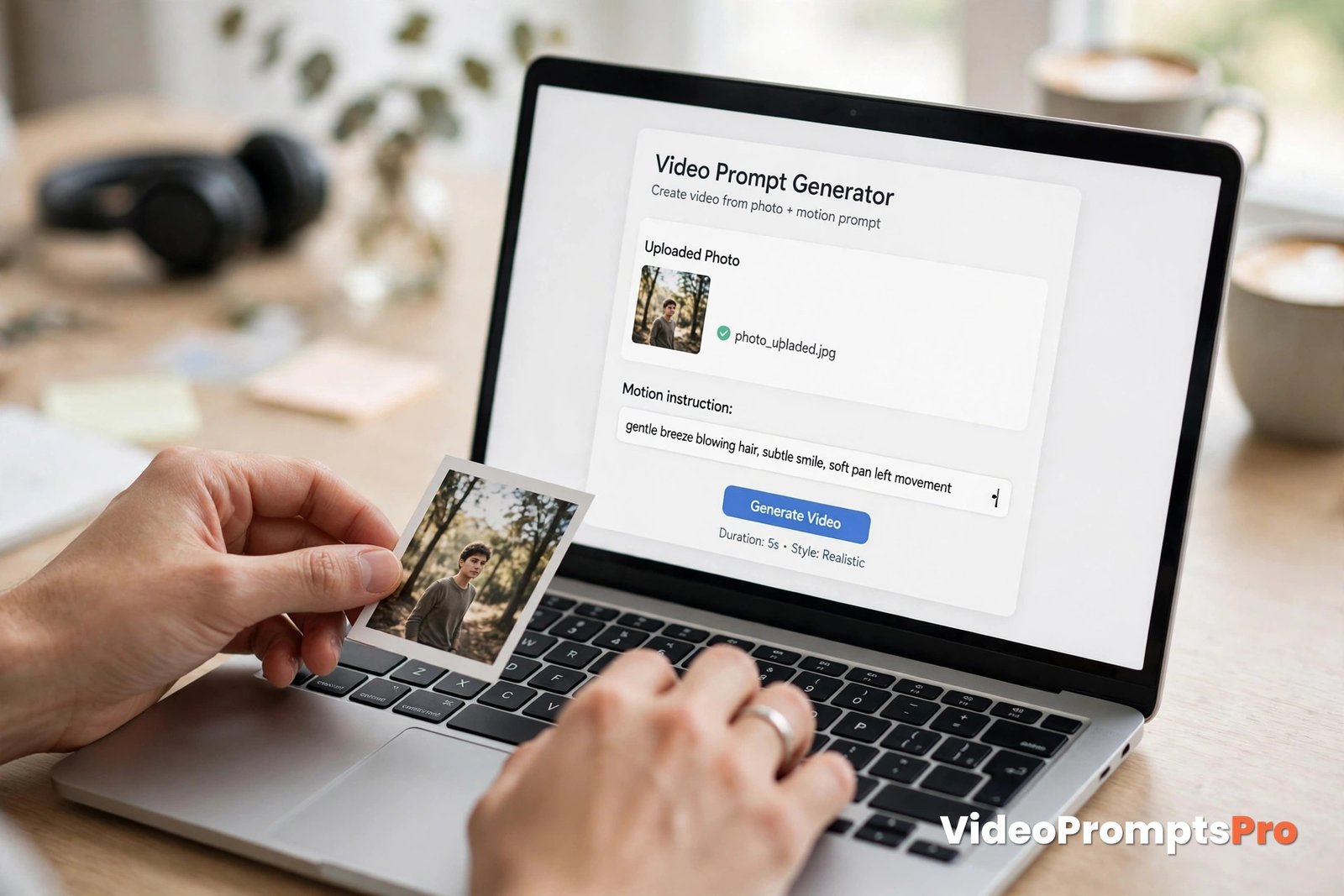
The ai video prompts generator for image to video on VideoPromptsPro is built for exactly this job. You describe the motion you want, choose your model, and it gives you a clean prompt to paste into your video tool alongside your image. It does not replace your photo. It protects it, by naming what must not change before it names what should move.
The Supported AI Models are Flow, Grok, Veo 3, Gemini, Sora and Kling. Each handles image to video a little differently, so the model choice matters. Flow and Veo 3 handle realistic faces and natural motion well, Kling keeps human movement smooth, Sora leans cinematic, and Gemini is fast for quick tests. Check what your chosen model supports, especially for length and sound, before you write the motion prompt. An ai video prompts generator for image to video works with all of them, but the prompt may need small tweaks per model.
Why does image to video need its own approach? Because the most common mistake is writing it like a text to video prompt. Describing the whole scene again, “a woman in a garden with flowers”, wastes words the model does not need, since the photo already shows all of that. Worse, a long scene description can fight the photo and pull the result away from it. An ai video prompts generator for image to video keeps the prompt focused on motion: what moves, in which direction, how fast, and how the camera behaves.
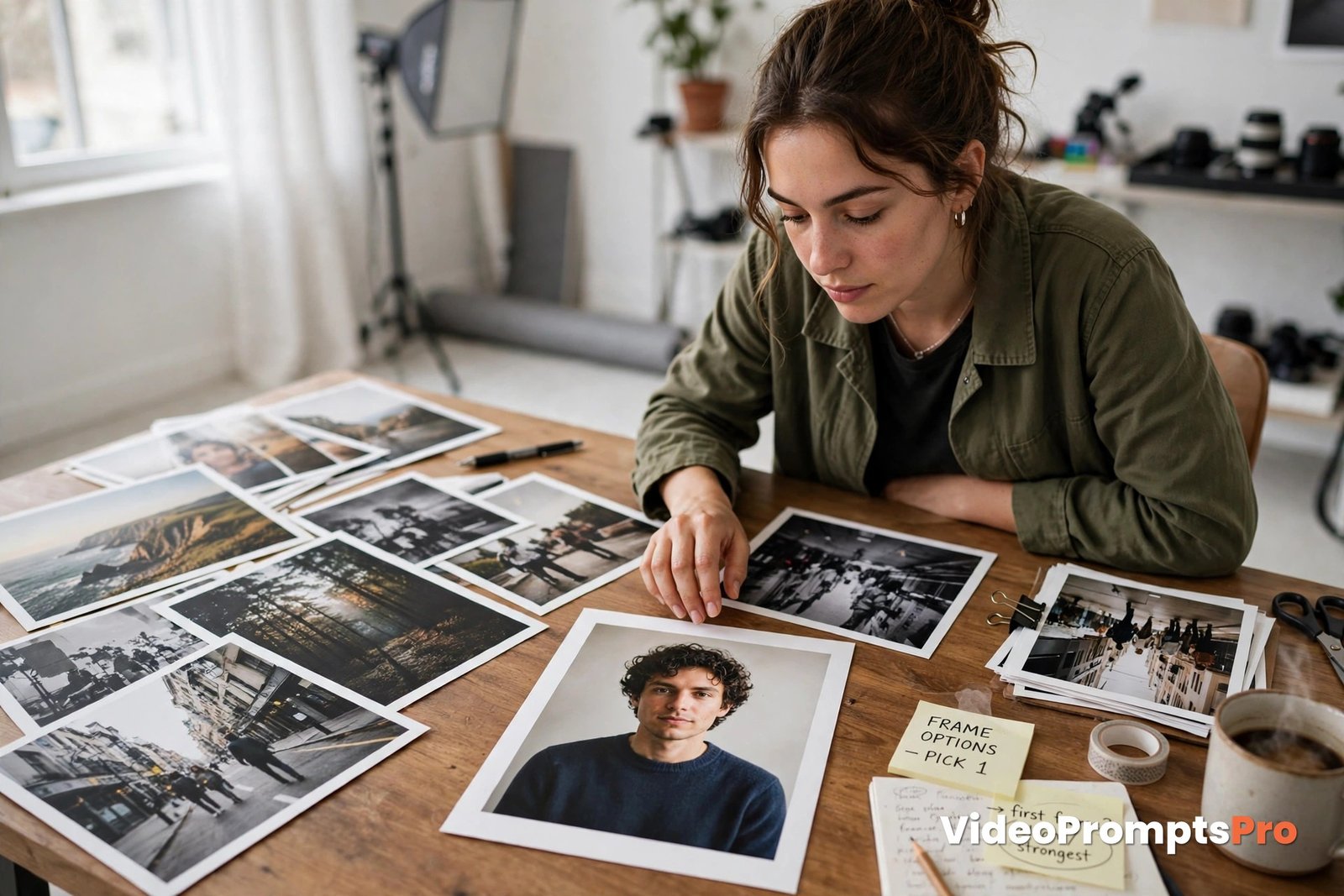
The first frame is the most important decision in the whole process. A sharp photo with a clear subject, clean light and room for the intended movement animates far better than a busy or blurry one. If the subject is cut off at the edge, or the face is half in shadow, no prompt can fully repair it. Choose the frame first, fix obvious problems like cropping before you animate. An ai video prompts generator for image to video can only direct motion well when the first frame gives it something solid to build on.
How to Use the AI Video Prompts Generator for Image to Video Step by Step
Using an ai video prompts generator for image to video takes a few minutes, and the photo does most of the creative work. Your job is to direct the motion clearly and to protect what matters. Follow these steps in order.
Step 1: Pick one strong first frame. Choose a photo with a clear subject, readable depth and enough space around the subject for movement. A portrait with the face well lit and the background uncluttered is ideal. An ai video prompts generator for image to video animates a strong first frame far more reliably than a weak one. Avoid photos with several competing subjects, unless only one of them is meant to move.
Step 2: Decide the one dominant movement. Every good clip from an ai video prompts generator for image to video has one main motion. A head turning, hair moving in the wind, a product rotating, or a slow camera push-in. Pick one, and let everything else be supporting detail. Two competing motions in one short clip usually produce a muddle.
Step 3: Choose the model and the format. With an ai video prompts generator for image to video, pick the model that fits the motion, then set the ratio to match the photo, or crop the photo first. A vertical photo animated into a wide frame forces the model to invent the sides, and that invention is where faces and products start to warp.
Step 4: Fill in the motion brief fields. An ai video prompts generator for image to video asks for camera behaviour, subject movement, environmental motion, pace and what to preserve. Write each one in short, visible terms. “Keep her face, hair colour and denim jacket exactly as in the photo” is a preservation line that earns its place in every portrait prompt.
Step 5: Read the prompt before you paste it. Check three things. Does it describe only motion, or does it redescribe the scene and risk fighting the photo? Is there one dominant movement, or three? Is the preservation line present for anything that must not change? Fix those now, not after a wasted generation.
Step 6: Generate, watch twice, and change one thing. Watch once for the overall feel and once for the details that matter, especially the face and the edges of the frame. Then change only the biggest problem and generate again. If the motion is too fast, slow the pace alone. If the face drifts, strengthen the preservation line alone. An ai video prompts generator for image to video rewards this one-change discipline, and it is how you learn what each instruction controls.
One Full Worked Walkthrough Example
Here is the whole process with one photo, so you can see how an ai video prompts generator for image to video turns a still image into a motion prompt. The photo is a portrait of a woman standing in a sunny garden, smiling softly at the camera.
A weak motion prompt for this photo would be: “Make this photo into a beautiful video.” It names no movement, no camera and no pace, so the model has to invent all three. An ai video prompts generator for image to video instead asks for the motion brief, and the finished prompt looks like this:
Animate this photo: the woman smiles softly and turns her head slightly toward the light, her hair moves gently in the breeze and petals drift past in the foreground. Very slow push-in camera. Keep her face, smile, hair colour and denim jacket exactly as in the photo. Calm, restrained pace, natural sunlight, no text, no extra people.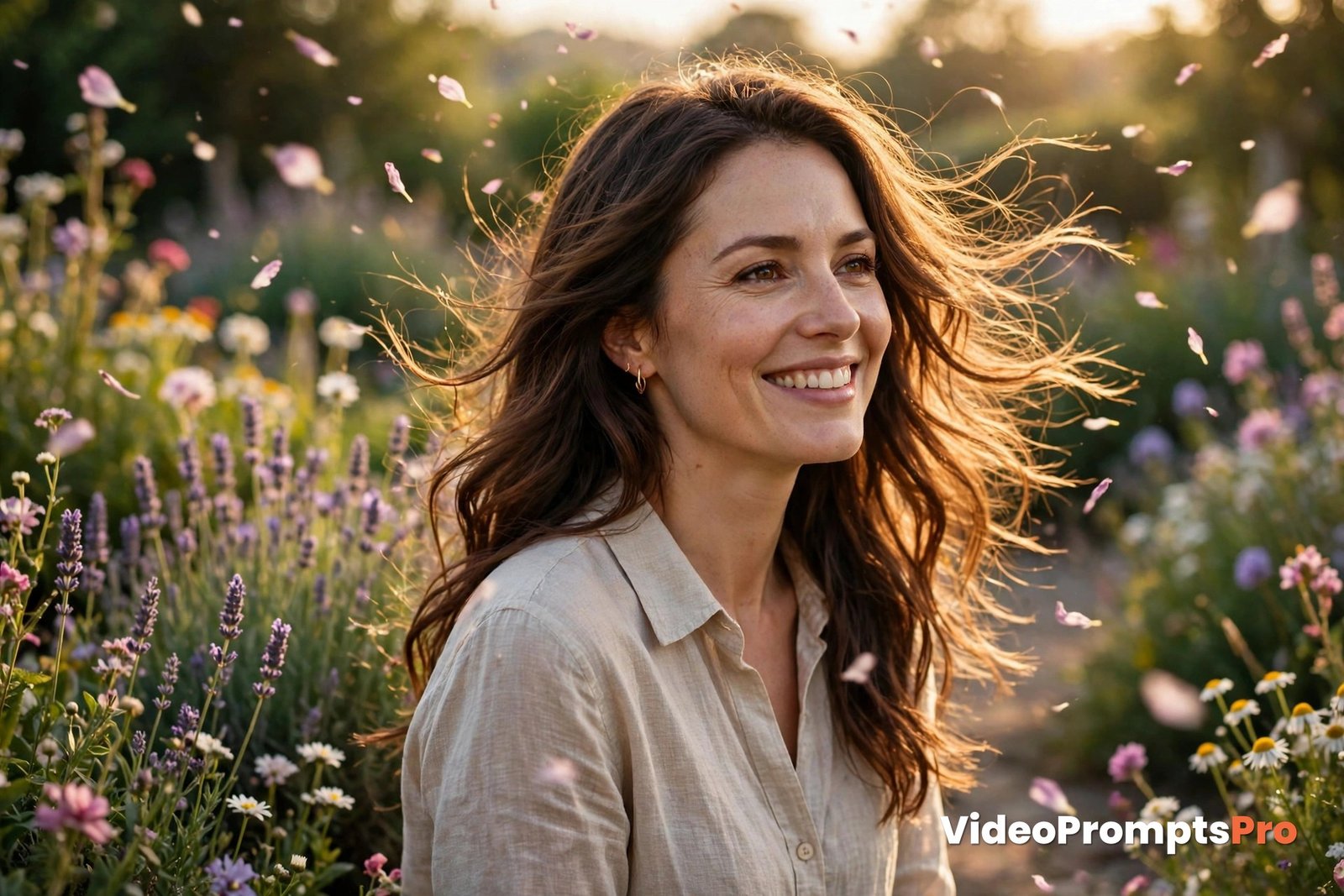
Notice what the prompt from an ai video prompts generator for image to video does. It gives one dominant movement, the gentle turn and smile, with two supporting details, the hair and the petals. The camera move is slow and named, the pace is restrained, and the preservation line names the face, the smile and the jacket explicitly. Nothing in it redescribes the garden, because the photo already shows it.
Now suppose the first clip comes back with the hair moving too wildly. The fix is one line: change “hair moves gently in the breeze” to “hair barely moves, a single soft strand drifting”. Generate again and compare. If the camera push feels rushed, change “very slow push-in” to “locked camera, no movement” and keep everything else the same. Small, single changes like this are the fastest route to a clip that looks like your photo, only alive.
With an ai video prompts generator for image to video, you can adjust the same prompt for other uses without starting over. For a product photo, swap the subject movement for a slow rotation and keep the preservation line on the product shape and label. For an old family photo, soften everything further: a blink, a soft smile and a very slow push-in, with the faces, clothes and colours preserved exactly. The structure travels, the subject changes.
Image to Video Strengths and Limits for Video Prompts
Image to video is at its best when the look is already decided. A product must look like itself, a person must look like themselves, and a brand scene must keep its colours. Starting from a photo gives you that control, and it is the reason product demos, portrait animations and photo restorations all favour this mode.
It is also honest about its limits. The model can only move what the photo suggests. A photo taken from behind cannot easily turn into a front-facing smile, and a tightly cropped product cannot rotate far without the model inventing the hidden side. Big transformations, like changing the outfit or the setting entirely, belong to a new image, not to a motion prompt.
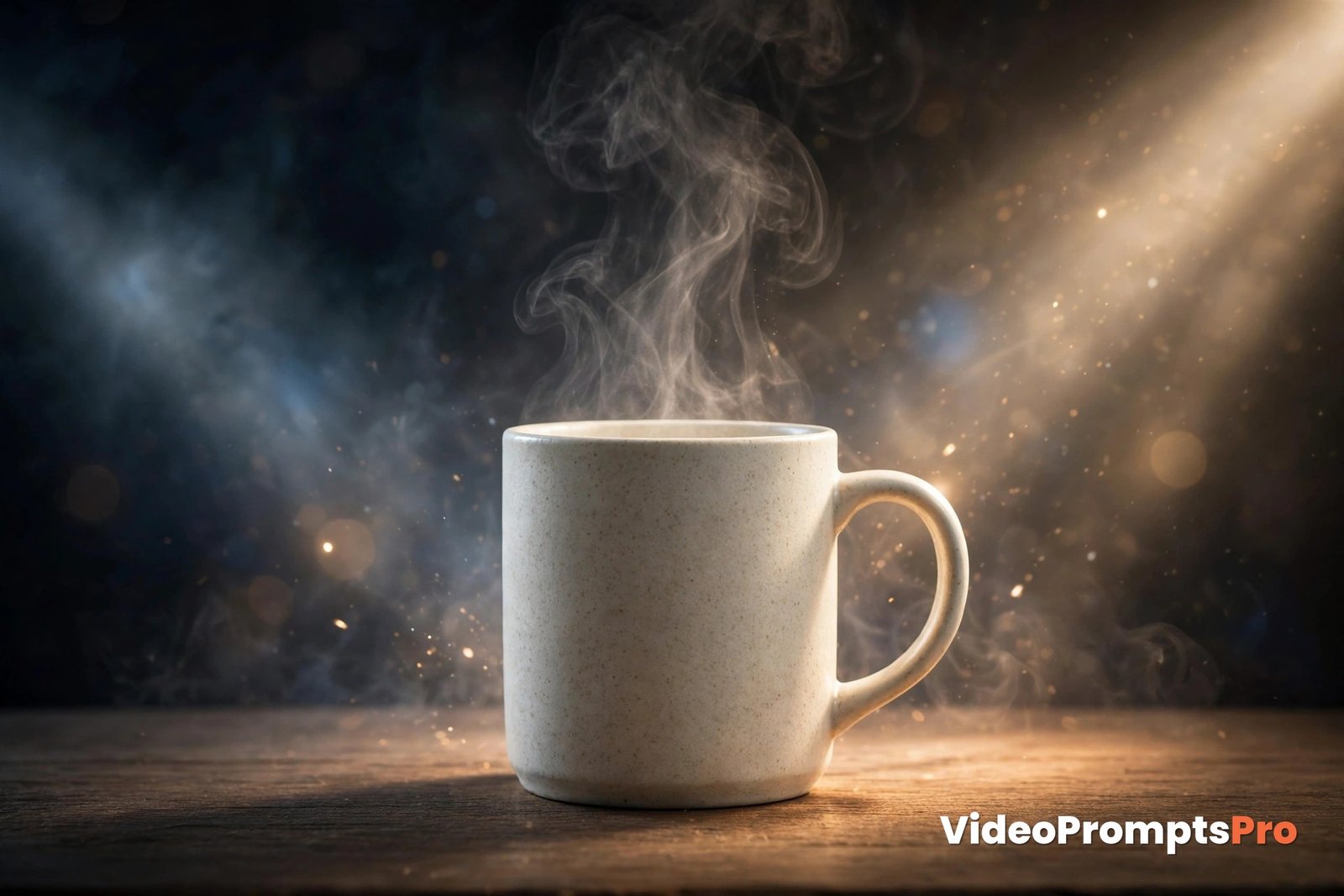
Continuity is the other limit to respect. The first seconds of an image to video clip usually stay closest to the photo, and longer clips drift further from it. For an ai video prompts generator for image to video, keeping clips short with restrained motion is the simplest way to keep the face or the product intact to the final frame. If a clip needs to run long, plan a calm ending pose in the prompt, so the motion settles instead of wandering.
Sound, where supported, should be described only as direction, not as a full script. A short note like “soft garden ambience” is enough for most clips. Dialogue in image to video needs a model that supports lip movement from a photo, and even then a single short line works far better than a speech.
Common Mistakes and Fixes
Mistake 1: Redescribing the whole scene. The fix is to describe only motion. An ai video prompts generator for image to video should name movement, not redescribe the scene. The photo already shows the subject, the setting and the colours. Every redescribed detail is a chance for the model to drift away from the photo.
Mistake 2: No preservation line. The fix is to name what must stay the same in every ai video prompts generator for image to video prompt: face, product shape, clothing, colours, composition. Without it, the model treats those details as free to change, and often does.
Mistake 3: Too much motion at once. The fix is one dominant movement plus supporting detail. A head turn, a camera move and a background change all at full speed will fight each other. Soften two of them and let one lead. A clear guide to animating photos makes the same point: protect what matters first, then introduce one dominant movement, as explained in HighReach’s image to video guide.
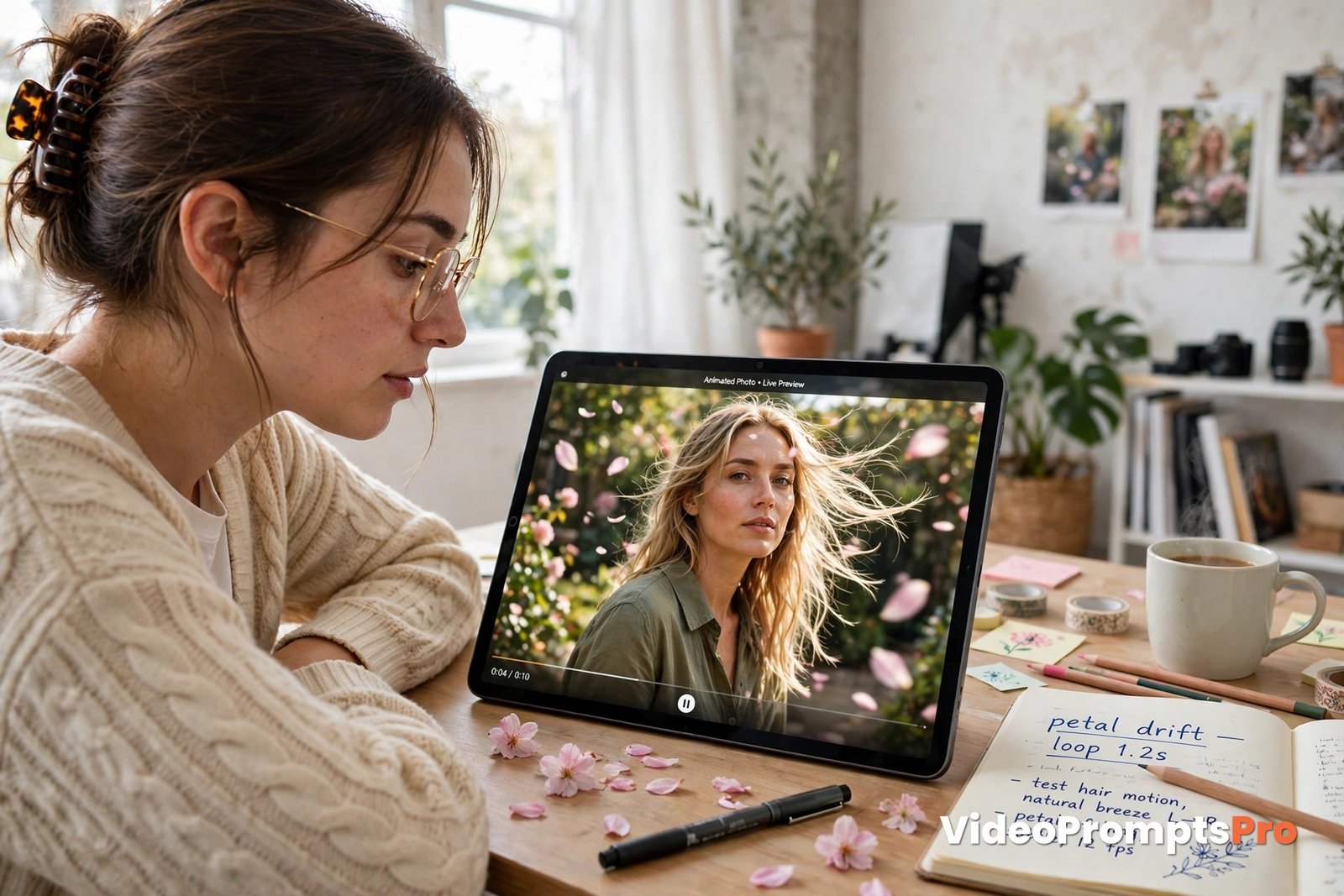
Mistake 4: Animating a weak first frame. The fix is to choose a better photo, or crop and clean it first, because an ai video prompts generator for image to video cannot repair a weak first frame. A blurry face, a cut-off subject or harsh mixed lighting will not improve in motion. It will only become more obvious.
Mistake 5: Changing everything after a bad result. The fix is the one-change rule. Note the biggest problem, change that one instruction, and generate again. You will learn the tool far faster, and you will waste far fewer generations.
Mistake 6: Mismatched ratio. The fix is to match the output ratio to the photo, or crop the photo deliberately first. Forcing a portrait photo into a wide frame, or the reverse, asks the model to invent a large part of the scene, and that invention is where warping starts.
Pro Tips for Better Image to Video Prompts
Start from the ending. An ai video prompts generator for image to video works best when the final frame is planned first. Ask yourself what it should look like, then choose motion that arrives there calmly. A clip that settles on a clear final pose feels finished, while one that keeps moving until it cuts feels unfinished.
Use environmental motion to sell the movement. An ai video prompts generator for image to video makes a small subject movement feel alive with wind in hair, drifting petals, steam rising, or clouds moving slowly, all without asking the subject itself to do anything dramatic.
An ai video prompts generator for image to video suits a calm camera. A very slow push-in or a locked camera fits most photo animations, because the photo itself is already composed. Fast orbits and tracking shots look impressive in theory, but they pull the model away from the photo fastest. Save bold camera moves for photos with plenty of space around the subject.
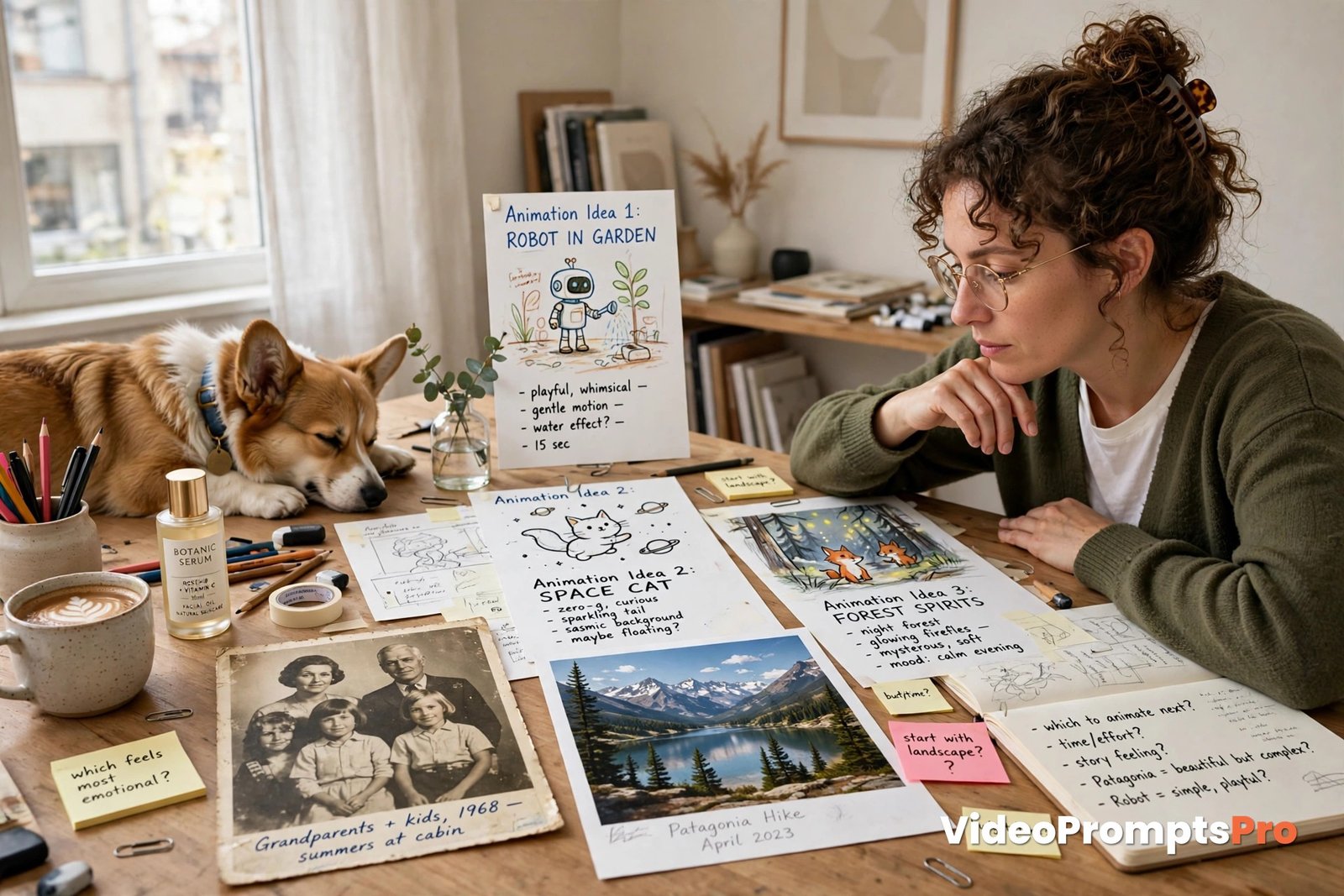
Build a small set of motion prompts from your ai video prompts generator for image to video sessions that worked for you, one for portraits, one for products and one for landscapes. Reuse the structure and change only the subject movement. If you want more starting points, Artcraft’s image to video examples show how a single motion sentence can carry a whole clip, and the text to video prompt library is useful when the scene is undefined and you should start from words instead of a photo.
Finally, judge the clip against the photo, not against your imagination. Put the photo and the final frame side by side. If the face, the product or the colours changed, the preservation line needs strengthening, whatever else improved.
FAQ
What is an ai video prompts generator for image to video?
It is a tool that turns a motion idea into a structured prompt for animating a photo, with camera movement, subject action, environmental motion, pace and preservation lines.
Do I need a special photo to animate?
No, but an ai video prompts generator for image to video animates a sharp photo with a clear subject, clean light and room for movement far better than a blurry or tightly cropped one.
Will the face stay the same in the video?
Usually yes. An ai video prompts generator for image to video keeps the face stable in short, restrained clips, especially when the prompt names the face explicitly as something to preserve. Longer or wilder motion increases drift.
How long should an image to video clip be?
Most reliable clips run 4 to 10 seconds with one dominant movement. Shorter, calmer clips stay closest to the original photo.
Can I animate a product photo?
Yes. An ai video prompts generator for image to video is ideal for product photos, because the photo fixes the product shape and label while the prompt adds rotation, steam, light or a slow camera move.
What if my photo is old or damaged?
Photograph or scan it straight on, crop the border, and keep the motion very gentle, such as a blink, a soft smile and a slow push-in.
Is the generator free to try?
Yes, you can try the generator on the VideoPromptsPro homepage and shape your first motion prompt without signing up for a video tool first.
Conclusion
Image to video works best when the photo leads and the prompt follows. An ai video prompts generator for image to video keeps that order, protecting the face or the product while directing only the motion.
With an ai video prompts generator for image to video, pick one strong first frame, choose one dominant movement, name what must stay the same, and refine one change at a time. Do that consistently, and your photos will move without losing themselves.
Open the generator, upload your photo, and animate your first frame today.
SEO Expert & Contant Writer