Intro
An ai video prompts generator for kling ai turns a rough idea into a structured prompt that Kling AI can actually follow. You describe the scene in plain words, and the generator shapes it into subject, action, camera, light, and sound.
That structure matters because Kling AI is a realism first model. It rewards clear, physical detail and punishes vague, overloaded descriptions. A good generator prompt gives it one scene, one main action, and one camera move, so the clip looks intentional instead of random. That is why an ai video prompts generator for kling ai keeps one scene, one action, and one camera move in every prompt.
In this guide, you will learn what the generator does for Kling AI, how to use it step by step, and how to shape one worked example from idea to finished prompt. You will also learn where Kling AI shines, where it struggles, and which mistakes quietly ruin otherwise good clips. Throughout, an ai video prompts generator for kling ai is used as the working example, not as a replacement for your own judgement.
What the AI Video Prompts Generator Is and What It Does for Kling AI
The AI Video Prompts Generator is a free tool on VideoPromptsPro that builds ready to use video prompts from a short description. You tell it what you want to see, pick the AI model you plan to use, and it returns a prompt written in the structure that model understands best.
For Kling AI, that structure is deliberately simple. Kling AI works best when a prompt reads like a short shot plan, not like a list of adjectives. The generator therefore orders your idea as subject first, then action, then environment, then camera movement, then lighting, then style and pacing, and finally any constraints that must stay consistent. That is the core job of an ai video prompts generator for kling ai: keep the prompt short, physical, and in one scene.
Supported AI Models in the Generator
The generator supports several leading video models, and you should always select the model you will actually generate with. The supported models are Kling, Flow, Grok, Veo 3, Gemini, and Sora. Each model has its own habits, so a prompt tuned for one model does not always transfer cleanly to another.
For this guide, Kling is the selected model, and every choice in the walkthrough below is made with Kling AI in mind. If you later switch to a different model, regenerate the prompt with that model selected instead of pasting the Kling version unchanged. The idea stays the same, but the phrasing, the camera language, and the level of detail should match the new model. Every choice below is therefore checked against what an ai video prompts generator for kling ai should produce for Kling.
Why Kling AI Needs a Different Kind of Prompt
Many beginners write Kling AI prompts the way they would write a caption, with a string of exciting words and no clear action. Kling AI then has to guess what matters most, and the guess is often wrong. The subject drifts, the camera wanders, or the motion looks floaty and weightless.
Kling AI also responds well to concrete visual language. “A sailor walks along a wet pier” is stronger than “a dramatic cinematic moment.” “Slow tracking shot from behind, at shoulder height” is stronger than “dynamic camera.” The generator nudges you toward that concrete language, and the worked example later in this guide shows exactly how that looks in practice.
How to Use the Generator Step by Step
Using the generator takes only a few minutes, but each step deserves a moment of thought. A rushed input produces a rushed prompt, and a rushed prompt produces a clip you will need to regenerate. Work through the steps in order, and check the result before you paste it into Kling AI. Treat each step as a check that an ai video prompts generator for kling ai has done its job before you move on.
Step 1: Describe Your Idea in One Sentence
Start with a single sentence that names the subject and the action. For example, you might write that a sailor walks along a rain wet harbour pier at golden hour. That sentence is the spine of your prompt, and everything else you add should support it rather than compete with it.
If your idea needs two sentences to explain, it probably contains two scenes. Split it, and generate one prompt per scene. Kling AI handles one clear scene far better than two half explained scenes squeezed into one clip.

Step 2: Select Kling as Your Model
Choose Kling from the Supported AI Models list before you generate. This tells the generator to use Kling friendly structure, realistic motion language, and a single shot focus. It also keeps the prompt length in the range Kling AI handles well, detailed enough to direct the scene, but not so long that the key action gets buried. With Kling selected, an ai video prompts generator for kling ai shapes the wording for Kling’s realism-first behaviour.
Step 3: Set the Format, Length, and Aspect Ratio
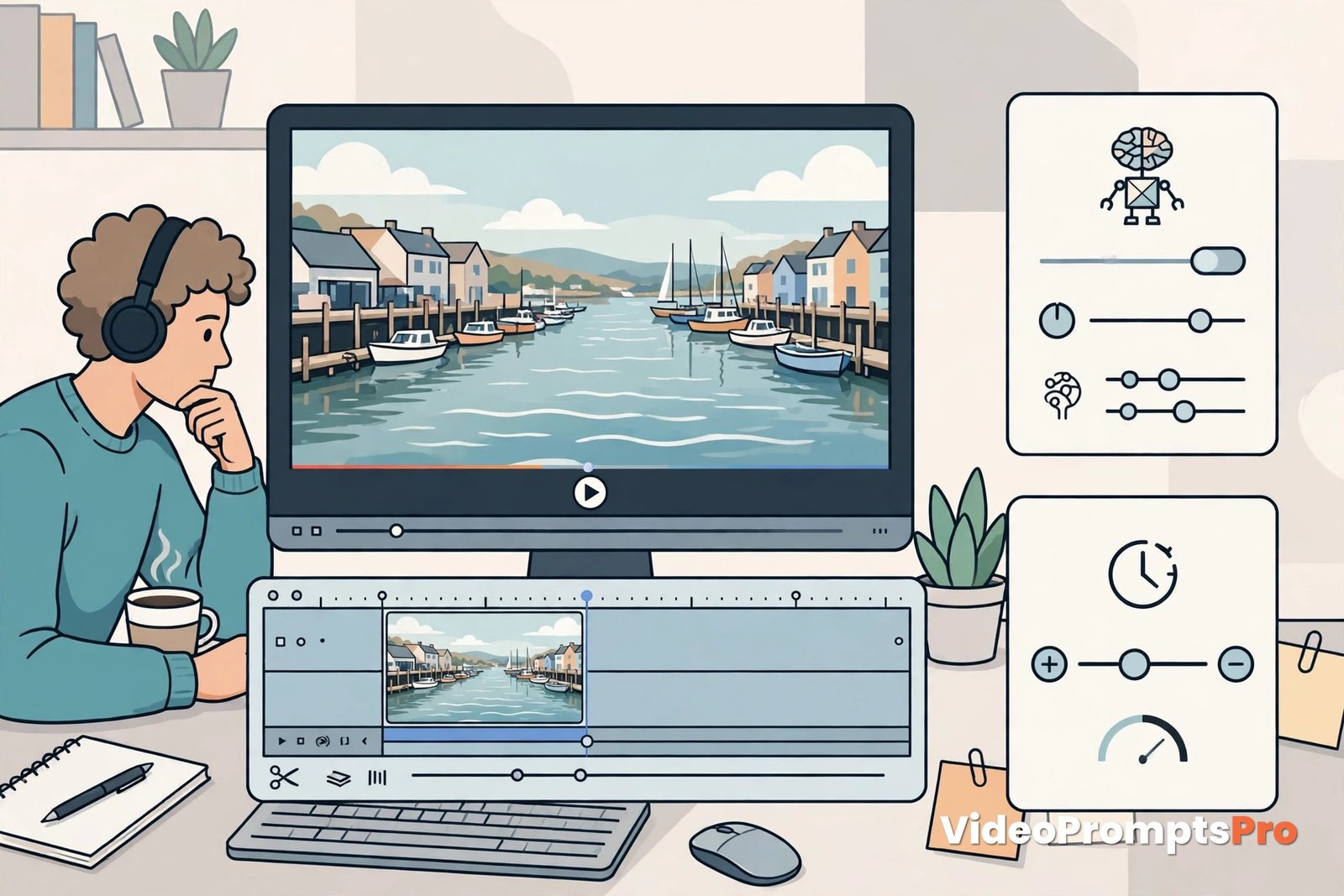
Decide how the clip will be used before you generate. A vertical clip for short form social video needs different framing from a wide cinematic clip for a longer edit. Kling AI supports common ratios including 16:9, 9:16, and 1:1, so pick the one that matches your final video. These choices help an ai video prompts generator for kling ai match the clip to where it will be watched.
Step 4: Generate, Read, and Edit the Prompt
Generate the prompt, then read it slowly before you use it. Check that the subject is named clearly, the action is one physical movement, the camera move is specific, and the lighting matches the mood you want. If any sentence feels vague, tighten it now rather than hoping Kling AI will interpret it generously. Read the result as you would any output from an ai video prompts generator for kling ai, and edit anything vague before use.
Step 5: Generate the Clip in Kling AI and Review It Properly
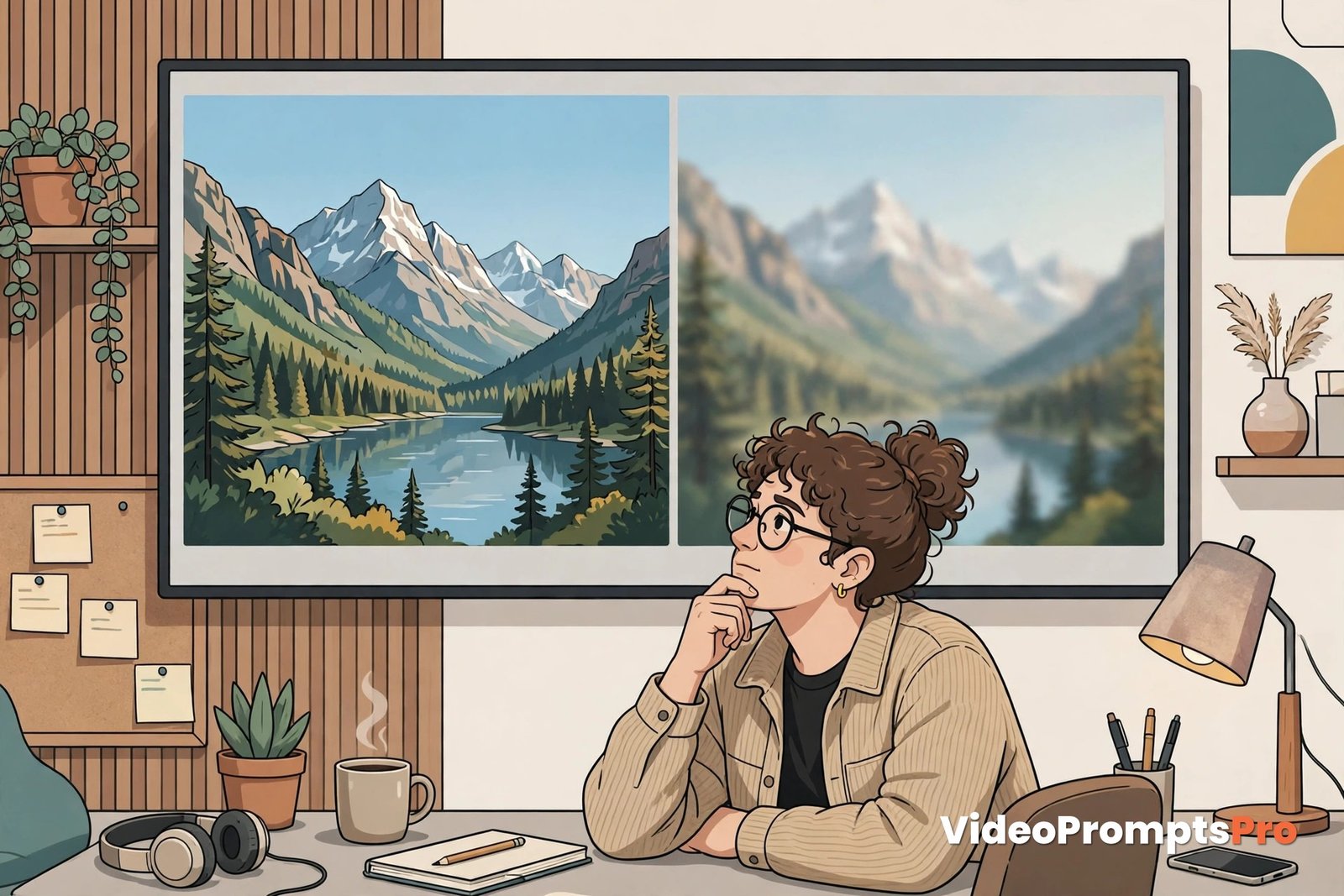
Paste the edited prompt into Kling AI, choose the matching duration and resolution, and generate. When the clip returns, watch it twice. On the first viewing, judge the overall feeling. On the second viewing, check the details: hands, faces, feet on the ground, reflections, and the way the camera moves. If the clip misses, return to the prompt from an ai video prompts generator for kling ai and change one thing at a time.
One Full Worked Walkthrough Example
Here is one complete example, from idea to finished prompt, using the generator for Kling AI. The idea is simple on purpose. A simple idea shows the method clearly, and you can swap in your own subject once you understand the pattern.
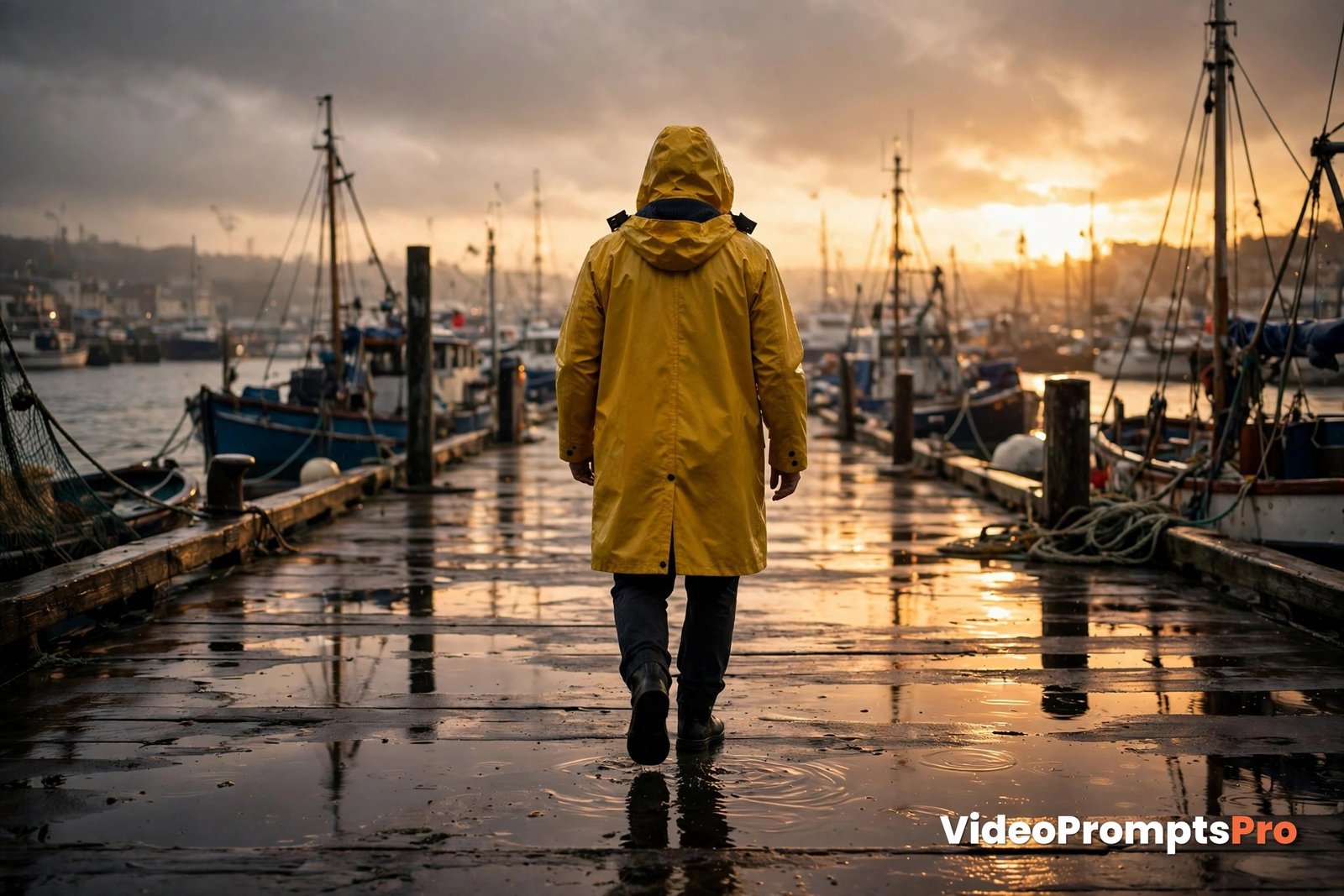
The idea: a sailor returns to a harbour at golden hour after rain, walking slowly along a wet pier while waves break beside him. That is the whole story for one clip. There is no second location, no costume change, and no sudden twist, because a short Kling AI clip does not need any of those things to feel cinematic.
Typed into the generator, the idea becomes a short description plus a few choices: Kling as the model, a wide 16:9 frame, and a ten second duration. The generator then builds a prompt that names the subject, the action, the environment, the camera, the light, and the sound, in that order. This is a typical starting point for an ai video prompts generator for kling ai, before the wording is tightened.
The prompt that comes out looks like this:
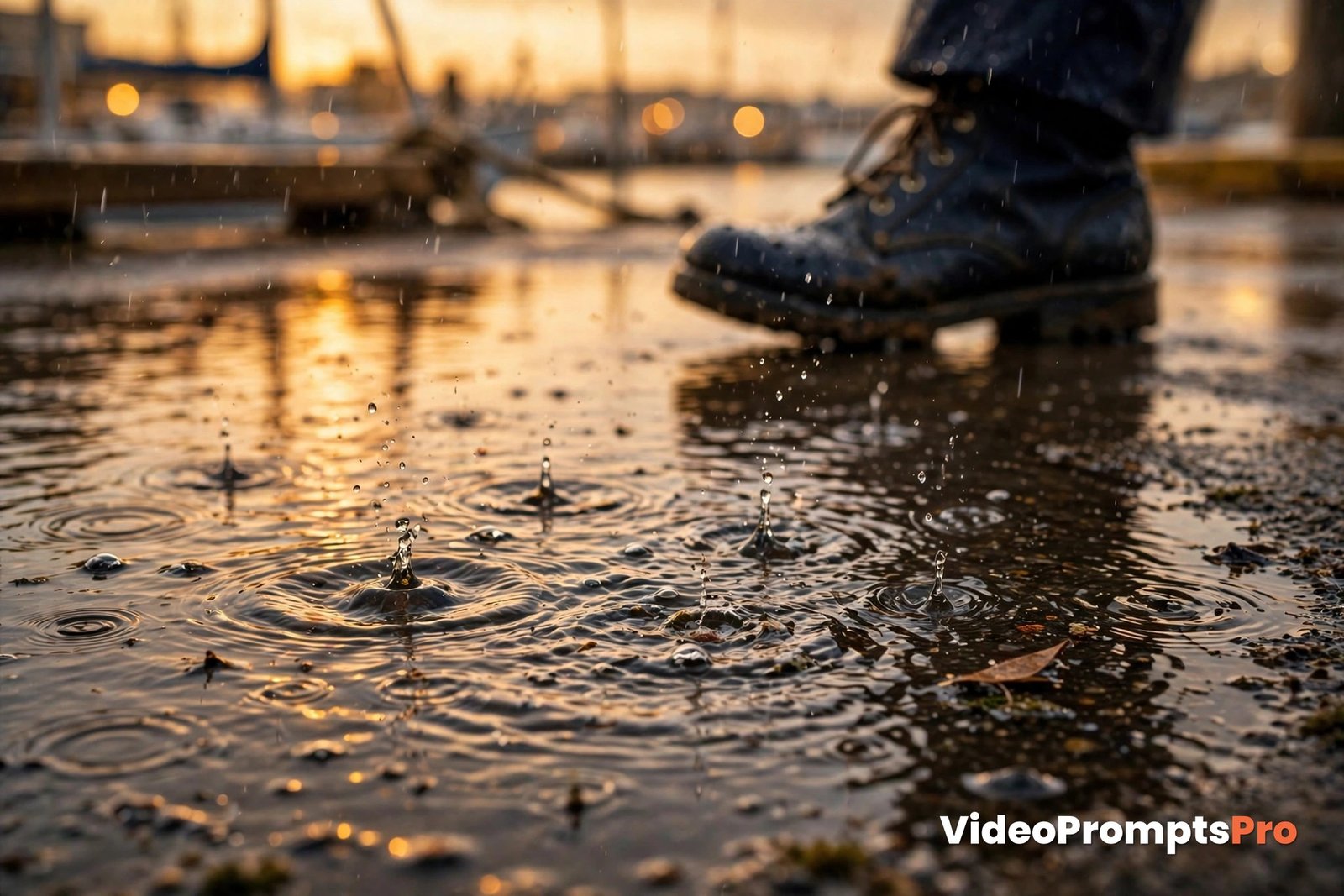
A sailor in a yellow raincoat walks slowly along a rain-wet harbour pier at golden hour, his boots splashing lightly through shallow puddles as waves break against the wooden posts beside him. A slow tracking shot follows him from behind at shoulder height, holding a medium framing that keeps his full figure and the wet planks in view. Warm low sunlight breaks through dark rain clouds, reflecting in the puddles and outlining the spray from the waves. Gentle wind, distant gulls, and the soft sound of water against wood fill the scene. Realistic motion, natural weight in each step, steady camera, cinematic colour, no text on screen.
Notice what the prompt does and what it avoids. It gives Kling AI one subject and one action, walking along the pier. It names one camera move, a slow tracking shot from behind. It describes light that changes the image, warm sun against dark clouds with reflections in puddles. It adds sound, wind, gulls, and water, because Kling AI versions with native audio can use that guidance.
Now imagine the first generation comes back with the camera moving too quickly. The fix is small and specific. Change “slow tracking shot” to “very slow tracking shot, barely moving forward” and keep everything else unchanged. If the sailor’s coat looks wrong, add one concrete detail, such as “dark navy coat with a raised collar,” instead of rewriting the whole scene. One change at a time is the fastest route to a good clip.
Kling AI Strengths and Limits
Kling AI earns its reputation for realism. Its motion often looks weighty and believable, especially for walking, water, cloth, and natural environments. Faces hold up well in medium shots, and newer versions handle multi shot sequences and audio with growing confidence. For realistic, cinematic clips, it is one of the strongest models available to everyday creators. Those strengths are why an ai video prompts generator for kling ai works best with concrete, physical description.
Reference driven creation is another real strength. When you give Kling AI a clear reference image for a character, a product, or an environment, and you tell the prompt what that reference controls, consistency improves noticeably. The key is role clarity. Say whether a reference defines the character, the wardrobe, the setting, or the camera motion, rather than uploading several images and hoping the model sorts them out.
The limits matter just as much, and the generator helps you respect them. Kling AI still struggles when a prompt asks for many actions, many characters, or many locations in one short clip. Complex hand movements, fast choreography, and tiny on screen text can also break down. Long, keyword stuffed prompts do not fix these limits. They usually make them worse by splitting the model’s attention. Knowing those limits helps an ai video prompts generator for kling ai stay inside what Kling can render well.
Duration is a practical limit too. Even when longer generations are offered, each additional second is another second where motion, identity, and physics must stay consistent. Plan longer clips as sequences of short, labelled shots, or as separate generations you edit together, rather than as one heroic prompt that tries to carry a whole story.
Common Mistakes and Fixes
Most disappointing Kling AI clips fail for a handful of repeatable reasons. Once you recognise them, they are easy to fix, and the generator makes the fixes easier because the prompt structure shows you exactly where each problem lives. Each fix below starts from the same idea: an ai video prompts generator for kling ai should give Kling one clear job per clip.
The first mistake is stacking actions. A prompt that asks a character to run, jump, turn, wave, and laugh in five seconds gives Kling AI no time to complete any single movement. The fix is to keep one primary action per clip and move the rest to separate generations.
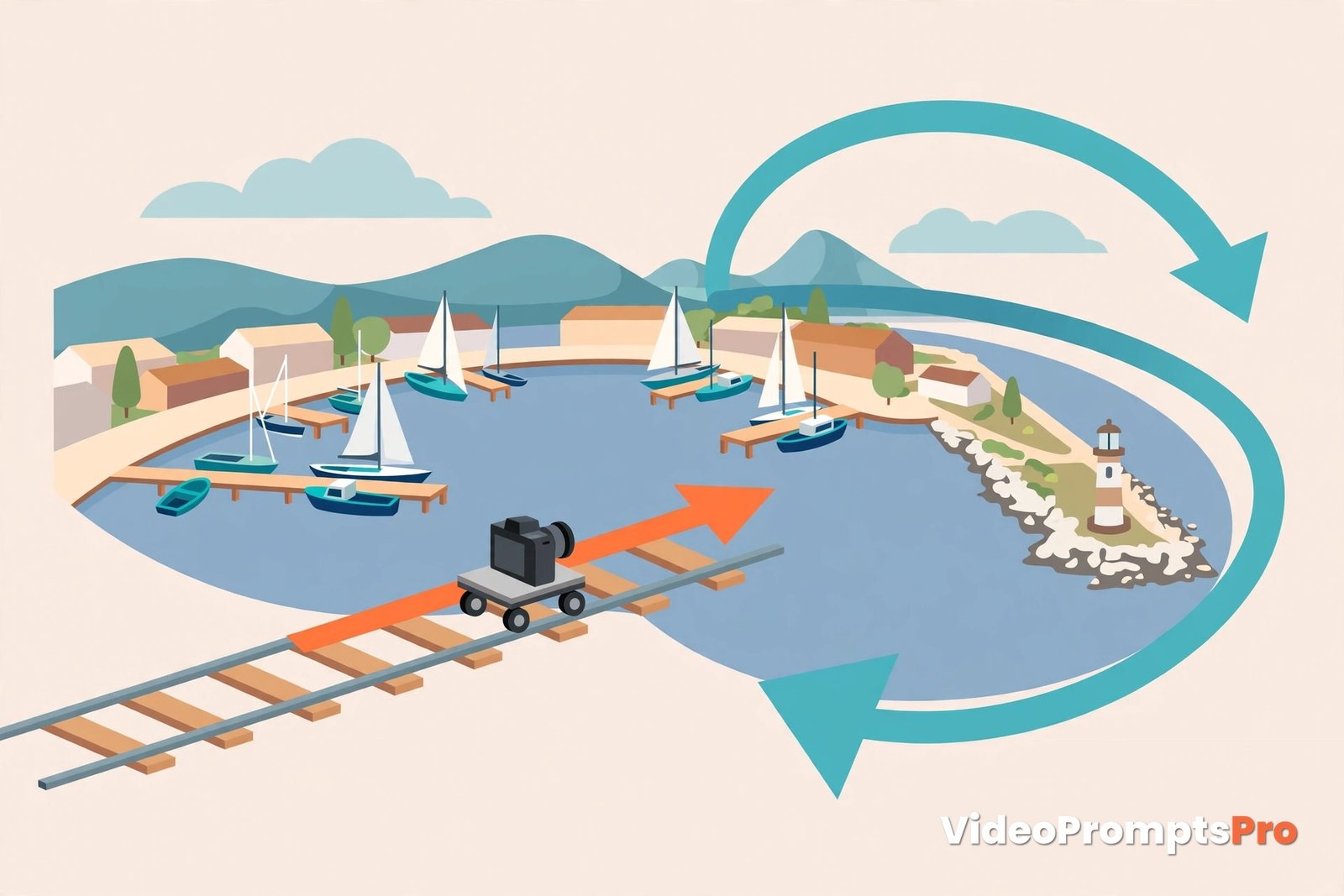
The second mistake is vague camera language. Phrases like “dynamic shot” or “cool angle” leave the framing to chance. The fix is to name one move in plain terms, such as slow push in, tracking shot from behind, gentle orbit, or locked wide shot, and to place it in time order if the clip needs two moves.
The third mistake is repeating the reference image in words. In image to video mode, the image already defines the look, so the prompt should direct motion instead of redescribing the scene. The fix is to write what changes: a head turn, a slow push in, wind in hair, rain falling through frame, while asking the model to keep facial features and clothing stable.
The fourth mistake is overloading the prompt with style words. Ten adjectives about cinematic quality do less work than one clear sentence about light and one clear sentence about camera. The fix is to cut style words that do not change the image, and to keep only the details a viewer would actually notice.
The fifth mistake is ignoring sound. Where Kling AI supports native audio, a silent prompt is a missed opportunity. The fix is to add one short audio line, naming the sounds that belong in the scene, such as wind, footsteps, water, or distant traffic, and nothing else.
Pro Tips
Write the action as a physical verb first. Walks, pours, lifts, turns, and opens are stronger than feels, seems, or becomes, because Kling AI animates bodies and objects, not abstractions. If your prompt has no physical verb in the first sentence, rewrite that sentence.
Give the camera a starting point and a direction. “Starts wide on the harbour, then pushes in slowly toward the sailor” is easier to follow than a list of angles with no order. Time order is especially important in multi shot prompts, where each labelled shot should have a clear narrative job.
Use negative constraints sparingly and precisely. A short line like “no text on screen” or “keep facial features stable” helps. A long list of things to avoid distracts the model from what it should actually do. One or two constraints per prompt is usually enough.
For more prompt ideas in other formats, explore the text to video prompt library on VideoPromptsPro, and return to the AI Video Prompts Generator whenever you need a fresh prompt structured for Kling AI.
FAQ
What is an ai video prompts generator for kling ai?
It is a tool that turns a short idea into a structured prompt written for Kling AI, with subject, action, environment, camera, lighting, and sound in an order the model follows well.
How long should a Kling AI prompt be?
Aim for a few clear sentences that cover one scene and one main action. Longer prompts are not automatically better, and extra detail should only stay if it changes what the viewer sees.
Does the generator work for image to video as well?
Yes, but the prompt should change. For image to video, describe how the scene moves from the reference image instead of redescribing its appearance, and ask the model to keep key features stable.
Why does my Kling AI clip look floaty or unstable?
Floaty motion usually comes from too many actions, vague camera language, or an overloaded prompt. Simplify to one action, name one camera move, and regenerate before adding detail back.
Can Kling AI generate sound with video?
Newer Kling AI versions support native audio, so adding a short sound line for wind, footsteps, water, or ambience can improve the result. Keep the sound list short and tied to the scene.
Should I use the same prompt for Kling AI and other models?
No, regenerate the prompt with the correct model selected. Each model has different strengths, and a prompt tuned for Kling AI may not suit Veo 3, Sora, or Flow without adjustment.
Conclusion
An ai video prompts generator for kling ai is most useful when you treat it as a structuring tool, not as a magic answer. You bring the idea, the subject, and the action. The generator puts them in Kling AI friendly order, with camera, light, and sound where they belong.
Start simple, pick Kling as your model, generate one clear prompt, and review the clip with honest notes. Fix one element at a time, save what works, and build from there. That patient loop is how realistic, cinematic Kling AI clips are actually made, one well directed shot at a time.
Open the AI Video Prompts Generator, select Kling, type your idea in one sentence, and generate your first prompt today. For official guidance on prompt structure, see the Kling AI video prompt guide and this Kling 4.0 complete guide for advanced multi shot and keyframe techniques.
SEO Expert & Contant Writer