
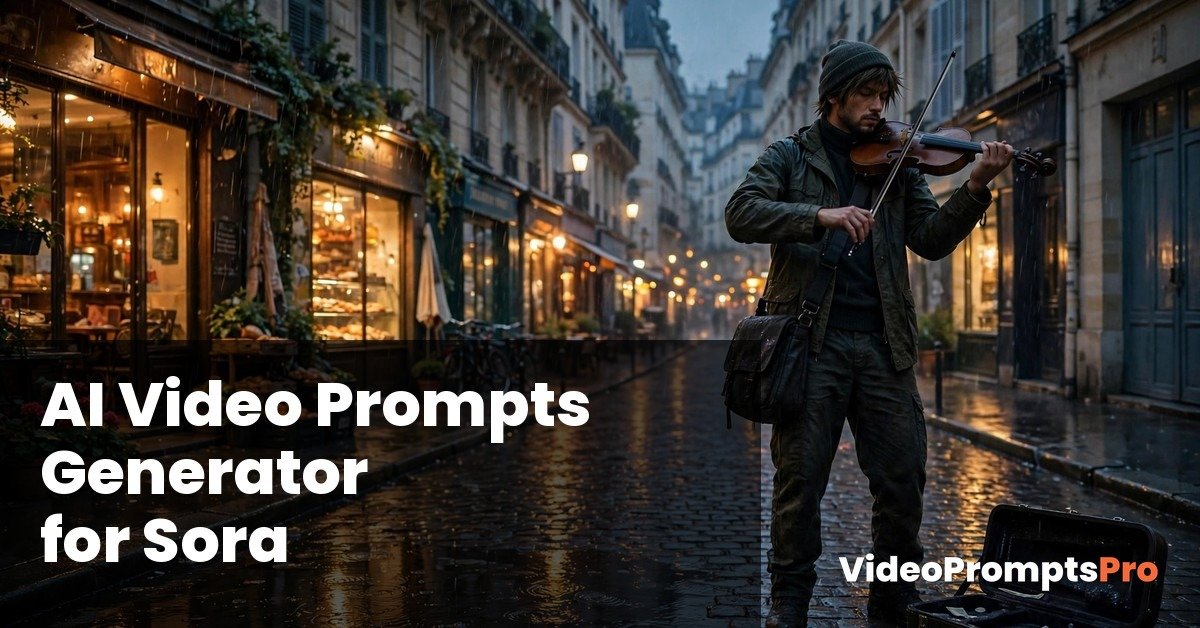
Intro
An ai video prompts generator for sora turns one rough idea into a clear, film-ready prompt in seconds. You describe the scene you can see in your head, and the generator shapes it into the structure Sora understands best. The result is a clip that looks planned, not accidental.
If you have ever typed “a man playing violin in Paris” into a video tool and got back something random, you already know the problem. Sora is powerful, but it can only work with what you give it. A vague idea gives it room to guess. A specific prompt gives it a job to do. That is exactly what a good generator helps you build, one detail at a time.
What Is an AI Video Prompts Generator for Sora?
An AI video prompts generator for Sora is a tool that helps you write better prompts for OpenAI’s video model. Instead of staring at a blank box, you start with your idea and answer a few guided questions about the subject, the action, the setting, and the camera. The tool then assembles those answers into a single, well ordered prompt.
Think of it as a script assistant, not a magic button. It does not replace your taste or your idea. It simply makes sure nothing important is missing before you spend a generation on a clip. The best prompts for Sora follow a simple five part structure: subject, action, environment, camera, and style. When all five are present, Sora has far less to invent on its own, and the output stays much closer to what you imagined.
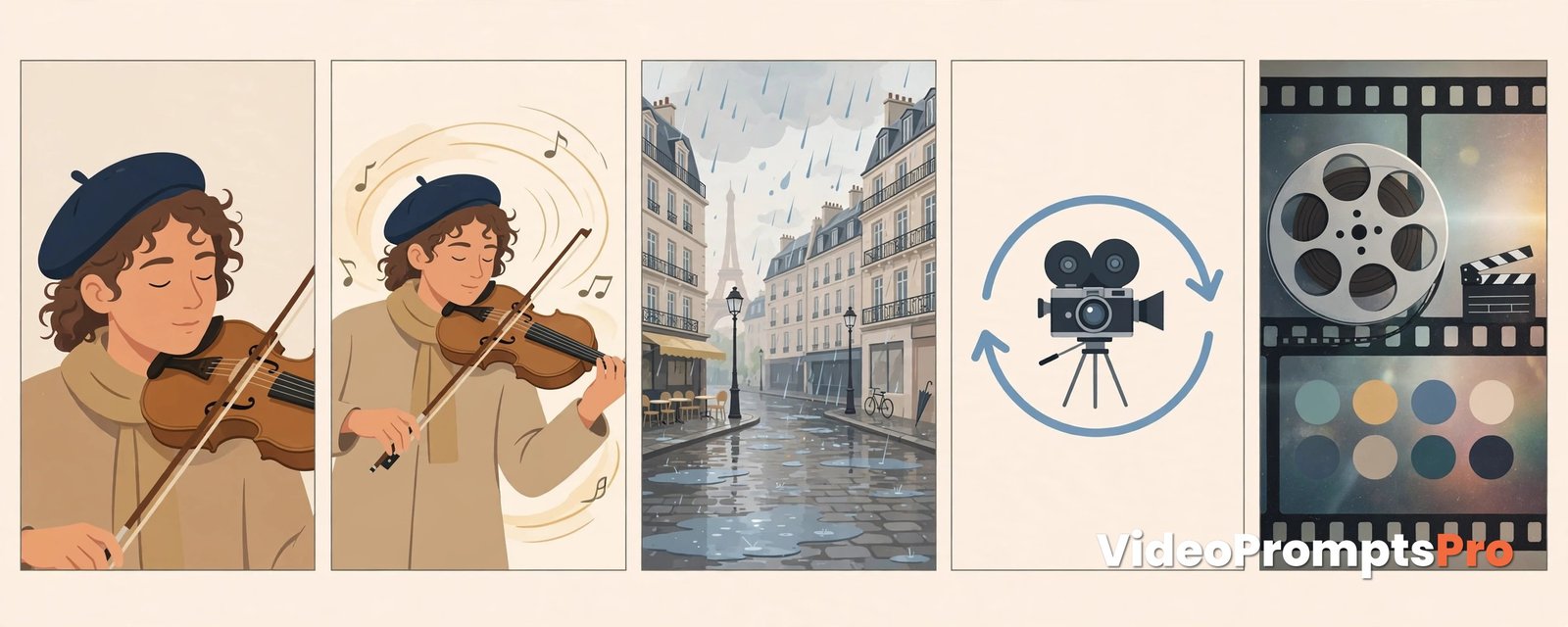
The generator on videopromptspro.com, the AI Video Prompts Generator homepage, supports several models. For this guide, Sora comes first, followed by Flow, Grok, Veo 3, Gemini, and Kling. Each model has its own strengths, but the habit of writing a complete prompt helps with all of them. Sora in particular rewards realism, so details about light, texture, and movement matter more than fancy adjectives.
Specificity beats vague ideas every time. “A beautiful city” could mean a hundred different places. “A narrow cobbled street in Paris at dusk, with warm shop lights and wet stones” means one place. The generator pushes you toward that second kind of description, because that is the kind Sora can actually film.
How to Use the Generator for Sora, Step by Step
Using the generator is simple, but the order matters. Work through the steps below slowly the first time, and you will soon do them in under a minute.
Step 1: Start with one clear idea
Pick a single moment, not a whole story. A street musician playing violin in the rain is one moment. A musician who walks through Paris, meets a friend, and plays at a concert is three moments. Sora clips are short, usually about 5-15 seconds, so one moment fits the format. Write your idea in one plain sentence first.
Step 2: Choose Sora as your model
Select Sora from the supported models. This matters because the generator shapes the wording for the model you pick. Sora handles realistic physics, natural motion, and synchronized audio well, so the prompt can ask for those things directly. Other models may need different phrasing, but for Sora, realism is the default language.
Step 3: Describe the subject and the action
Name who or what is in the shot, and give them exactly one clear action. “A street musician in a dark coat plays the violin” is strong. “A musician does lots of things while people walk by and cars pass” is weak, because Sora has to split its attention. One subject and one action keep the clip focused and believable.
Step 4: Set the environment and the light
Describe where the scene happens and how it is lit. Include the time of day, the weather, and one or two details that make the place feel real, such as wet cobblestones or glowing shop windows. Lighting and colour palette control the whole mood. Warm shop lights against a cool blue evening sky, for example, instantly says “cinematic” without needing the word itself.
Step 5: Choose one camera move
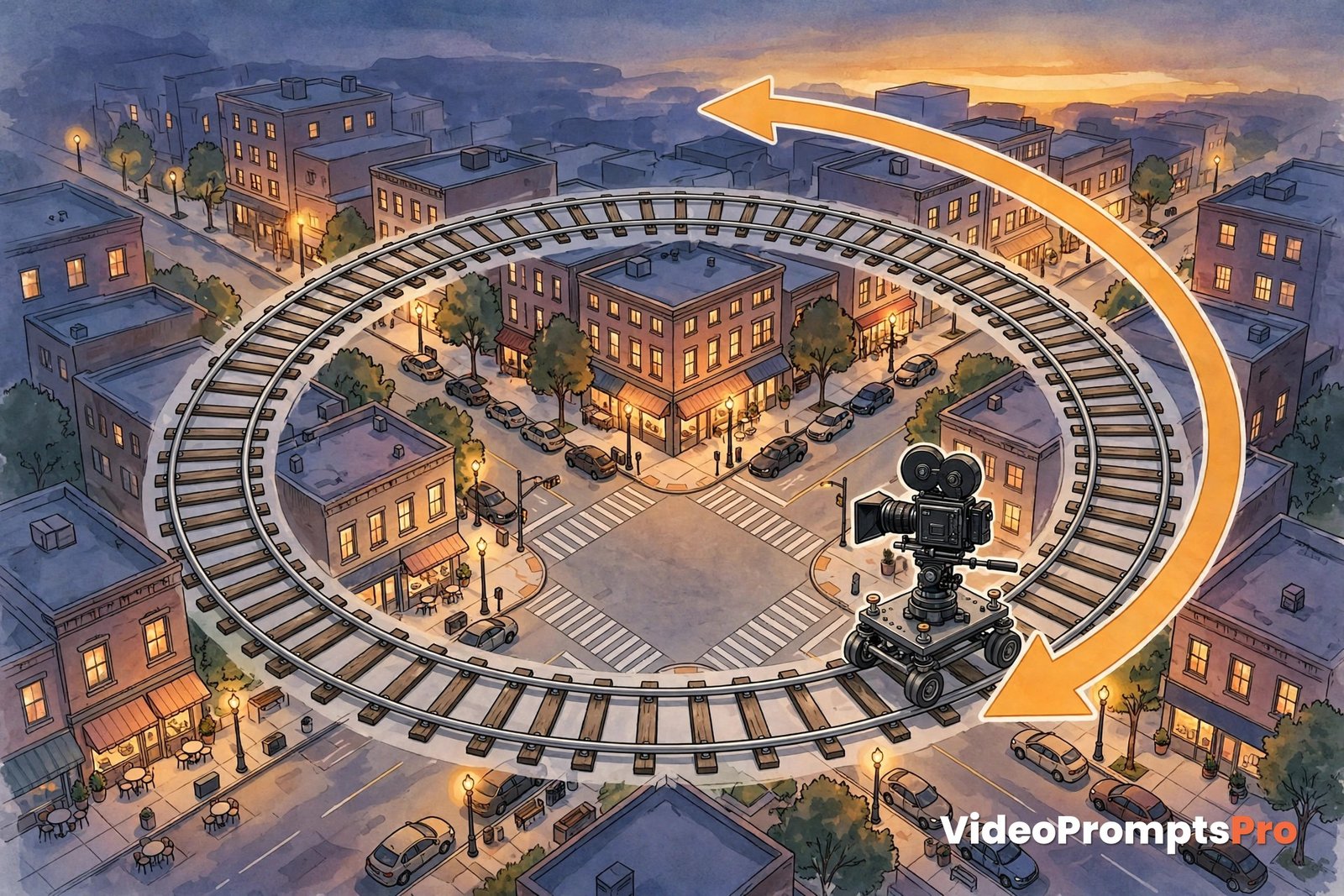
Pick a single camera movement and describe it plainly. A slow circling shot, a gentle push in, or a steady tracking shot all work. Camera movement is one of the easiest details to get wrong, because asking for two moves at once often produces a confused shot. One move, described clearly, gives Sora a path it can follow smoothly.
Step 6: Add style, audio, and technical details
Finish with the look, the sound, and the format. Name the style, such as realistic cinematic film. Add the audio you want, such as gentle rain and soft violin music, since Sora 2 supports synchronized audio. Then set the duration and aspect ratio. A 10 second clip in 16:9 suits a cinematic scene, while a vertical format suits a short form post.
Step 7: Generate, read, and refine
Read the full prompt before you use it. Check that it still describes your original idea, and that no extra characters or actions have crept in. If something feels off, change one detail at a time. Iterating by changing one detail at a time is the fastest way to learn what each word does, and it stops you from breaking a prompt that was nearly right.
A Worked Example: From One Idea to One Sora Prompt
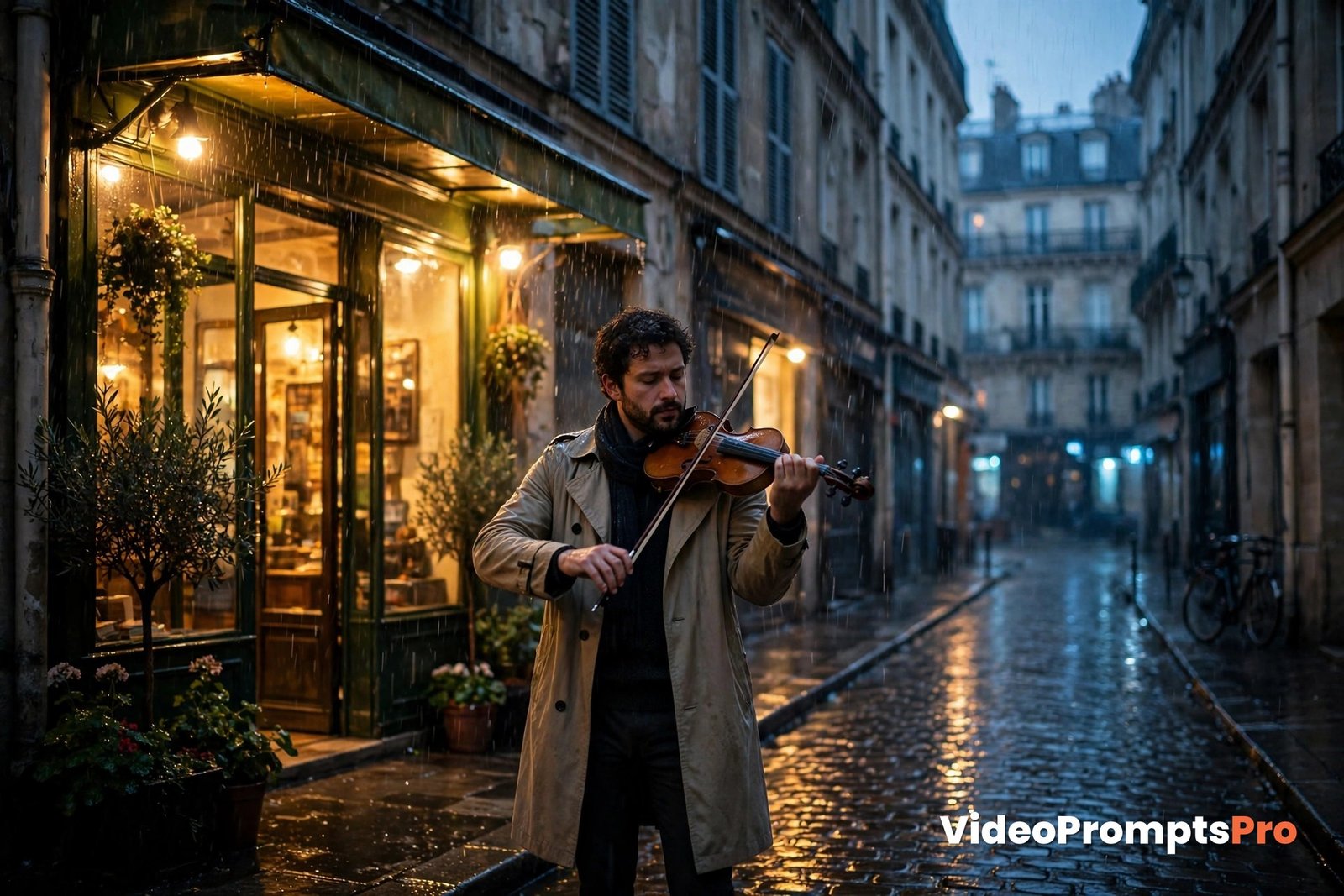
Let us walk through a real example, start to finish. The starting idea is simple: a street musician playing violin on a rainy Paris street at dusk, with the camera slowly circling, warm shop lights, and gentle rain sound.
That sentence already has a subject, an action, and a place. What it lacks is camera language, lighting detail, colour, audio, and format. The generator fills those gaps by asking the right questions. The subject becomes a musician in a dark coat, standing on wet cobblestones. The environment gains shop windows, evening light, and rain. The camera gains one slow, steady move around the musician.
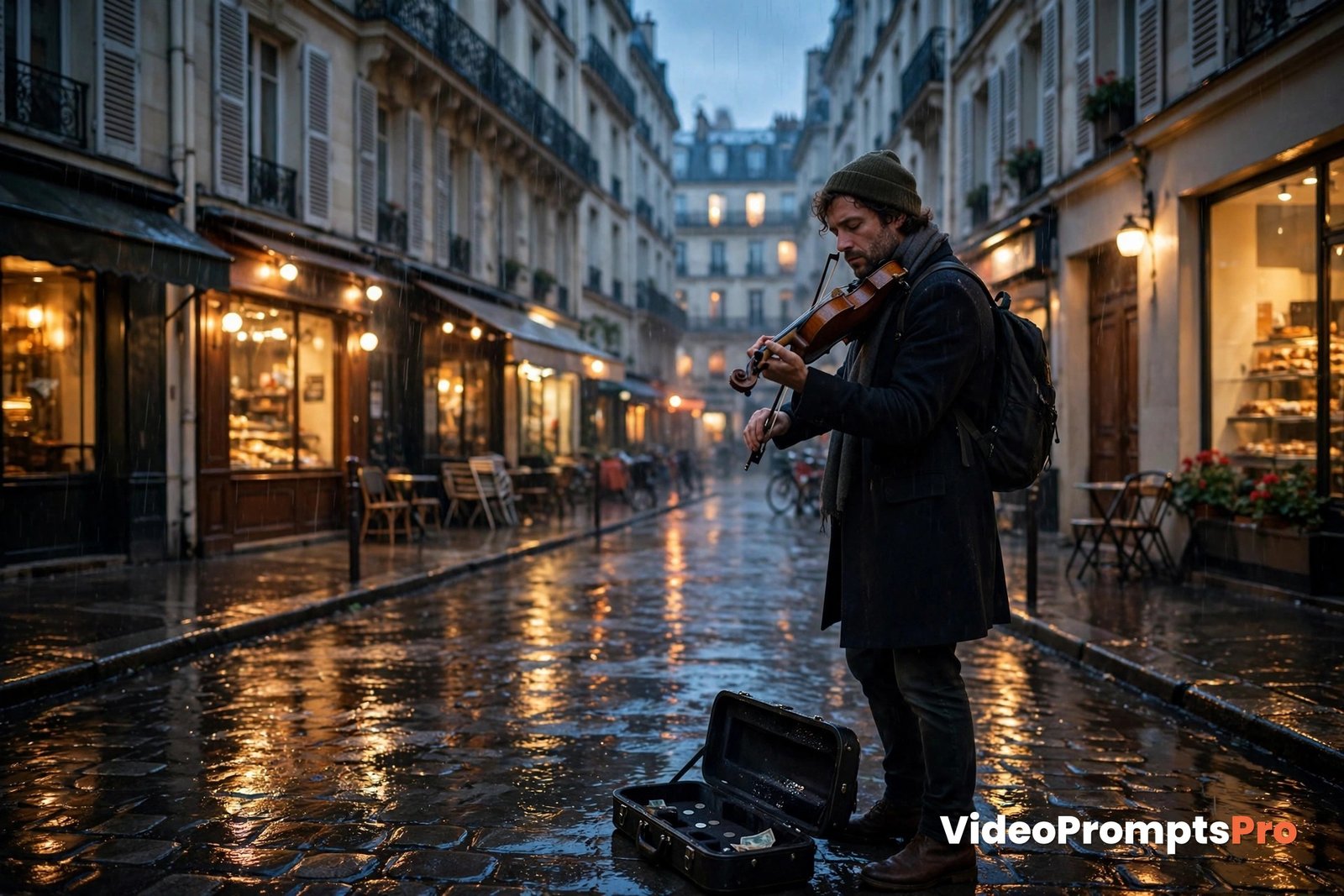
Here is the single finished prompt the generator produces for this idea:
A street musician in a dark coat plays the violin on a rainy Paris street at dusk, standing on wet cobblestones beside warmly lit shop windows. The camera slowly circles around him in one smooth, continuous movement, keeping him in frame as rain falls gently around him. Cinematic realistic style, soft evening light, warm amber shop lights against a cool blue dusk sky, with a warm and muted colour palette. Audio: gentle rain sound and soft, expressive violin music, synchronized with the musician's playing. Duration: 10 seconds, aspect ratio 16:9.Notice how every part of the five part structure is present. The subject is the musician, the action is playing the violin, the environment is the rainy Paris street, the camera move is the slow circle, and the style is cinematic and realistic. Lighting, colour palette, audio, duration, and aspect ratio are all stated in plain words. Nothing is left for Sora to guess, and nothing extra is competing for attention.
If the first clip comes back too dark, you would change only the lighting line, not the whole prompt. If the camera feels too fast, you would slow the circling move and leave everything else alone. That is the discipline that turns a generator from a novelty into a reliable workflow.
Sora Strengths and Limits You Should Know Before You Generate
Sora is at its best with realistic, grounded scenes. It handles natural human movement, believable physics, and detailed environments with confidence. Rain falling on stone, light reflecting on wet ground, and a musician’s bow moving across strings are the kinds of details it renders well. When your prompt is specific, the result often looks like footage, not animation.
Sora 2 adds synchronized audio, which changes what a prompt can ask for. You can now describe sound as part of the scene, not as an afterthought. Gentle rain, footsteps, or a violin melody can be timed to the action on screen. Short natural dialogue blocks also work, but keep them brief. A line or two of speech fits a short clip. A long speech does not.
The limits matter just as much. Sora clips are short, so complex stories with several beats will feel rushed or incomplete. Fast, complicated action can also break down, with hands, faces, or objects shifting in odd ways. Realistic physics helps, but it does not fix a prompt that asks for too much at once. Keep the action simple, keep the camera move simple, and let one moment carry the clip.
Another limit is control. Sora will interpret your words, but it will not follow them like a camera crew following a shot list. Small details may change between generations. That is normal, and it is why iteration matters. Generate, watch closely, change one thing, and generate again. Two or three careful rounds usually land much closer than one hopeful attempt.
Common Mistakes and How to Fix Them
Most weak Sora results come from the prompt, not the model. The good news is that the same few mistakes cause most of the problems, and each one has a simple fix.
Mistake 1: Asking for too many actions
A prompt that asks a character to walk, talk, wave, and play an instrument in ten seconds will usually produce a muddled clip. Sora has to rush through each action, and none of them looks natural. The fix is to choose one clear action per clip. If your story needs more, split it into separate clips and edit them together.
Mistake 2: Stacking camera moves
Asking for a zoom, a pan, and a circling shot in one prompt often produces a shaky or confused camera path. The fix is one camera move per clip. Name the move, name its speed, and let Sora follow a single path. A slow, steady move almost always looks more professional than a busy one.
Mistake 3: Forgetting light and colour
Many prompts describe the subject well but say nothing about light. The result is flat, grey footage with no mood. The fix is to add one lighting sentence and one colour note every time. Time of day, the main light source, and the balance of warm and cool tones are enough to transform a clip.
Mistake 4: Writing dialogue that is too long
Long speeches in a short clip sound rushed and often fall out of sync. The fix is to keep spoken lines short and natural, ideally one or two sentences. If a character must say more, plan a longer clip or split the dialogue across two shots.
Mistake 5: Changing everything after a bad result
When a clip disappoints, the temptation is to rewrite the whole prompt. That usually destroys the parts that worked. The fix is to change one detail at a time and compare the results. You learn faster, and you keep the good parts intact.
Pro Tips for Better Sora Results
Once the basics are solid, a few habits will lift your clips from good to genuinely cinematic. None of them require extra tools, only a little more care in the prompt.
First, write the way a director would describe a shot, not the way a search engine would. Short, visual sentences work better than lists of adjectives. Describe what the camera sees, in the order it sees it. Second, use contrast. Warm light against cool evening air, a still musician against falling rain, or a quiet street against soft music all create depth without extra effort.
Third, protect the subject. Keep the main character clearly described and clearly lit, and avoid filling the background with competing action. A simple background makes the subject stand out. Fourth, test the same prompt twice before changing it. Sora has natural variation, so a second generation of an unchanged prompt can reveal whether a problem was the prompt or just one unlucky run.
Finally, build a small library of prompts that worked. You can browse the Text to Video Prompt Library on this site for finished examples, and compare their structure with your own. Studying what worked, and why, teaches you faster than starting from zero every time.
FAQ
What is an ai video prompts generator for sora?
It is a tool that turns a plain idea into a complete, well structured prompt for Sora, covering subject, action, environment, camera, and style.
How long should a Sora prompt be?
A strong prompt is usually three to six sentences long. That is enough room for all five parts plus light, colour, audio, and format, without overloading the model.
Can Sora generate audio with video?
Yes, Sora 2 supports synchronized audio. Describe the sound plainly in your prompt, such as gentle rain or soft violin music, and keep dialogue short and natural.
Why does my Sora clip look different from my prompt?
Sora interprets words rather than following them exactly, and vague or overloaded prompts leave room for guessing. Tighten the prompt to one action and one camera move, then change one detail at a time.
What aspect ratio should I use for Sora?
Use 16:9 for cinematic scenes and presentations, and vertical 9:16 for short form social clips. State the ratio in the prompt so Sora frames the shot correctly.
Conclusion
A good Sora clip starts before you press generate. It starts with one clear moment, described with enough detail for Sora to film it faithfully. An ai video prompts generator for sora helps you reach that standard consistently, by making sure subject, action, environment, camera, and style are all present before you spend a generation.
Try it with the worked example above, then change one detail and watch what happens. That small loop, generate, watch, refine one thing, is how you build real skill with Sora. To learn more about the model itself, see OpenAI Sora, and for extra prompt inspiration, see Techpresso Sora prompts guide. Open the generator, type your idea, and give Sora a prompt worth filming.
SEO Expert & Contant Writer