
Intro
An ai video prompts generator for diwali videos turns one festive idea into a ready to use video prompt in seconds. You describe the scene, and it builds the subject, action, camera and lighting into a single clear instruction.
This guide shows you how to use that generator well for Diwali 2026. You will learn what to type, how to shape one strong idea, and how to avoid the mistakes that make festive clips look flat or confused.
What Is an AI Video Prompts Generator for Diwali Videos?
An ai video prompts generator for diwali videos is a tool that writes detailed video prompts from a short description. Instead of guessing how to phrase camera movement, light and motion, you give it your idea and it fills in the missing detail.
The result is a prompt you can paste into an AI video tool. The tool then creates the clip from your words, or animates a photo you upload, depending on the model you choose.
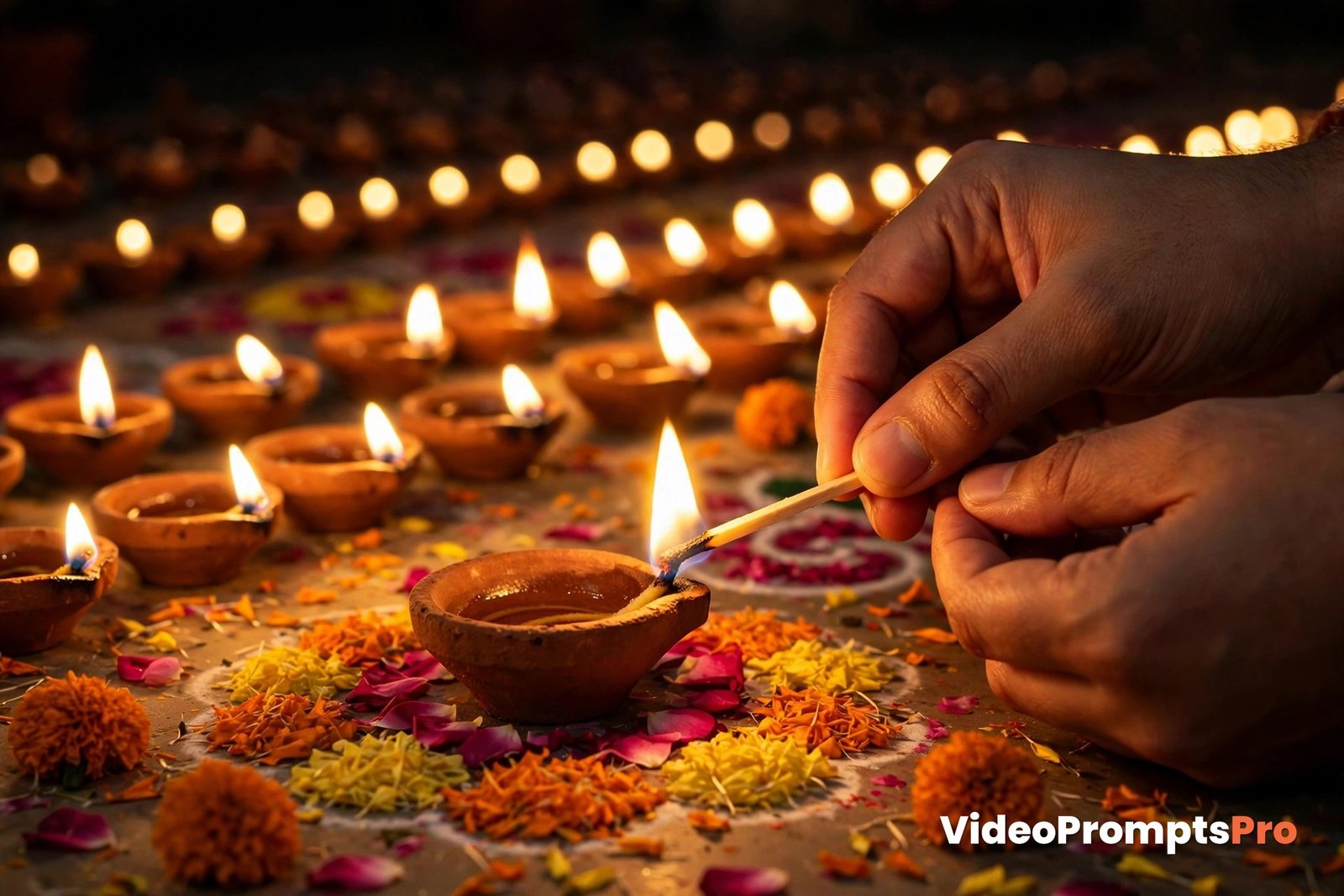
For Diwali, the generator matters more than usual. Festive scenes are full of small moving details. A diya flame flicker, fairy lights glowing, fireworks bursting and a family smiling all happen at once.
If you describe all of that in one messy sentence, the video model has to guess what matters most. A good generator organises the scene so the main action stays clear and the festive detail supports it instead of crowding it.
The generator on this site supports several AI models, including Flow, Grok, Veo 3, Gemini, Sora and Kling. Each one handles festive light a little differently, and that affects which clip you should ask for.
Veo 3 is a strong choice when your clip needs sound, since it can pair dialogue or festive music with the picture. Flow is useful for cinematic camera movement, such as a slow pan across a decorated balcony.
For image to video work, where you animate a Diwali photo you already have, choose a model that keeps faces and patterns stable. Rangoli patterns and diya flames are easy to distort, so a model that respects the original photo will give you a cleaner result.
The generator lets you pick the model first, then shapes the prompt around what that model does best. That one choice can be the difference between a warm, believable clip and one that flickers apart.
How to Use the Generator for Diwali Videos, Step by Step
Start with one clear idea, not five. A single scene, one main action and one feeling will always beat a long list of everything you love about Diwali.
Open the AI Video Prompts Generator and type your idea in plain words. For example, write that a family is lighting diyas on a decorated balcony at night.
Next, pick the model that fits your clip. If you want sound and a cinematic feel, Veo 3 is a natural pick. If you are animating a photo, pick the image to video option and upload that photo first.
Then add the details the generator asks for, one at a time. Name the subject, the action, the setting and the camera move. Add the lighting and the mood last, so they support the scene instead of replacing it.
Choose your format before you generate. A vertical 9:16 clip suits Reels and WhatsApp status, while a wide clip suits YouTube or a family TV screen. Changing the shape later usually means cropping, and cropping can cut out diyas or fireworks at the edges.
Read the finished prompt before you use it. Check that it has exactly one main action. If it asks for two different actions at once, shorten it and generate again.
Generate one test clip and watch it fully. Look at the flame movement, the faces and the edges of the frame. Small problems are easier to fix in the prompt than after you have shared the clip.
If something looks wrong, change one thing only. Adjust the action, or the camera, or the lighting, but not all three at once. That way you learn what fixed the clip, and your next prompt gets better.
A Worked Example: From One Idea to One Diwali Prompt
Here is one idea, worked through from start to finish. The idea is simple: a family on a decorated balcony at night, lighting a circle of clay diyas, with rangoli on the floor and fireworks in the distance.
The first draft of that idea is too thin for a video model. It names the people and the place, but it says nothing about the camera, the light or the sound. The generator fills those gaps, and this is what a finished prompt looks like.
A happy family in festive clothes sits together on a decorated balcony at night, lighting a circle of small clay diyas arranged around a colourful rangoli on the floor. Diya flames flicker gently, fairy lights glow warm above them, and fireworks burst softly in the distant sky. The camera slowly pans from left to right across the balcony, keeping the family and the glowing diyas in frame. Style: warm, realistic, cinematic festive video. Lighting: warm golden light from diyas and fairy lights against a deep blue night sky. Colour palette: gold, orange, marigold yellow and deep blue. Audio: gentle festive instrumental music with soft distant firework sounds. Duration: 8 seconds. Aspect ratio: vertical 9:16.
Notice how the prompt keeps one clear action: lighting the diyas. The fireworks, the rangoli and the fairy lights are atmosphere, not extra actions competing for attention.
Notice also how motion is described with verbs. The flames flicker, the fireworks burst, the family smiles, and the camera pans slowly. Video models respond to motion words far better than to long lists of adjectives.
If you want a different result, change one element. Swap the slow pan for a still camera, and the clip feels calmer. Swap the vertical format for a wide one, and the same scene becomes a greeting video for a bigger screen.
You can explore more ready made starting points in the Text to Video Prompt Library, but always adapt the idea to your own scene rather than copying a clip word for word.
Diwali Video Strengths and Limits You Should Know Before You Generate
Diwali scenes play to the strengths of modern video models. Warm light, glowing flames and rich colour are things these models render beautifully, and a short festive clip can look genuinely celebratory.
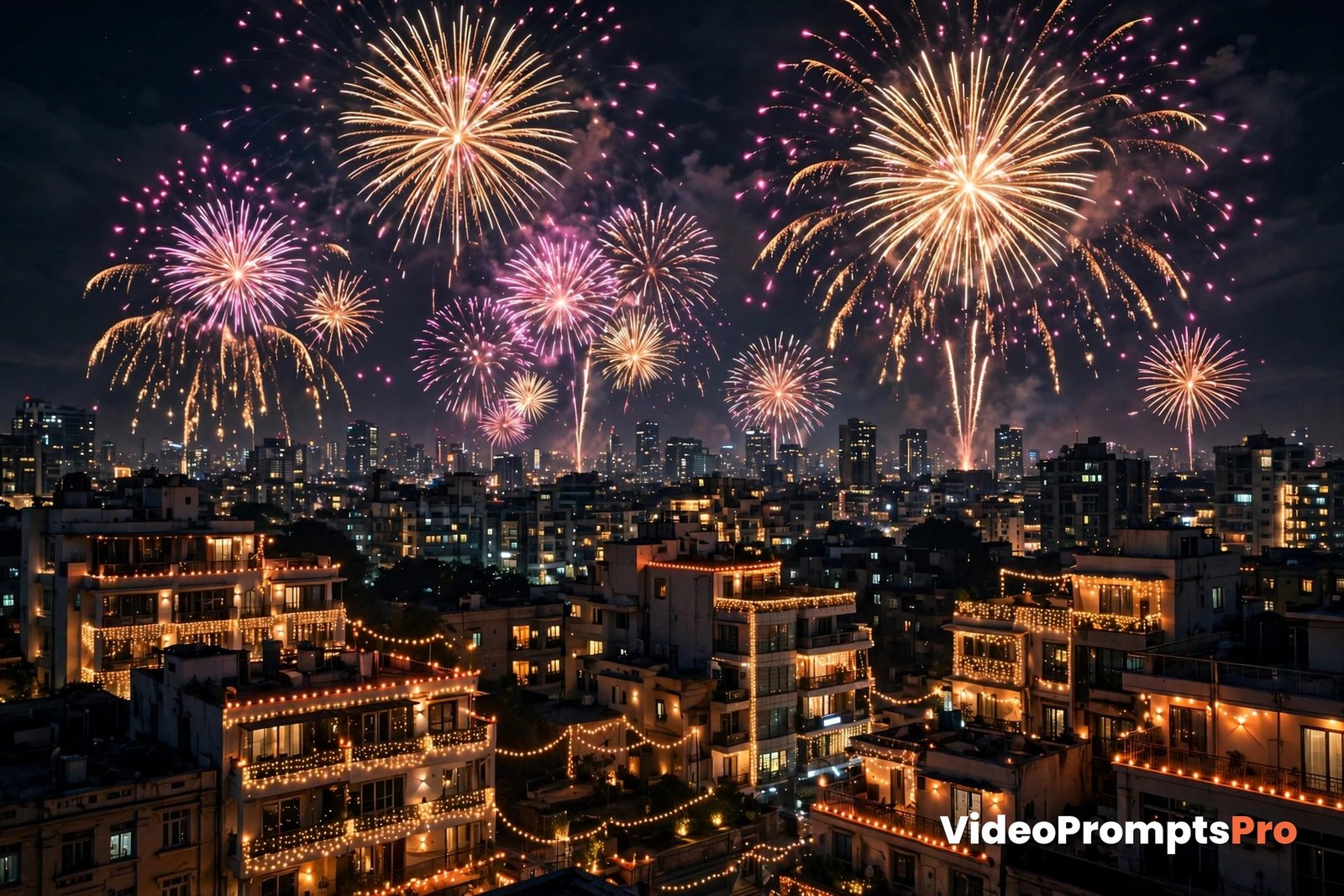
Fireworks are another strength, as long as you keep them in the background. A sky full of bursting colour reads clearly, even in a short clip, and it instantly says celebration without any words.
Faces are the main limit to watch. In a group scene, smiles can shift or hands can blur, especially when several people move at once. Keeping the group small, and the action slow, reduces this problem a lot.
Fine patterns are a second limit. Rangoli patterns can wobble or melt if the camera moves too fast across them. A slow camera move, or a still shot, keeps the pattern crisp.
Fire and light can also flicker too hard. If you ask for flames, sparks, fairy lights and fireworks all at full energy, the clip can look noisy. Pick one bright element as the star and let the rest glow quietly.
Sound is a mixed area. Some models generate music and effects well, while others stay silent or add odd audio. If sound matters for your greeting, test it early, and be ready to add your own festive music over a silent clip.
Short clips are your friend here. Most models are strongest at 5 to 10 seconds, which is perfect for a greeting, a status or a Reel. Longer festive scenes tend to drift, with faces and patterns changing halfway through.
Common Mistakes and How to Fix Them
The most common mistake is packing too much into one clip. A prompt that asks for diya lighting, dancing, fireworks, a rangoli reveal and a greeting message will not do any of them well.
Fix it by choosing one action per clip. Make the diya lighting clip first, then make a separate fireworks clip, and join them later if you need a longer video.
The second mistake is forgetting to describe motion. A prompt that only lists objects, such as diyas, rangoli and lights, gives the model no idea what should move.
Fix it with motion verbs. Say the flames flicker, the sparks rise, the family smiles, and the camera pans. Every moving thing in your scene deserves one verb.
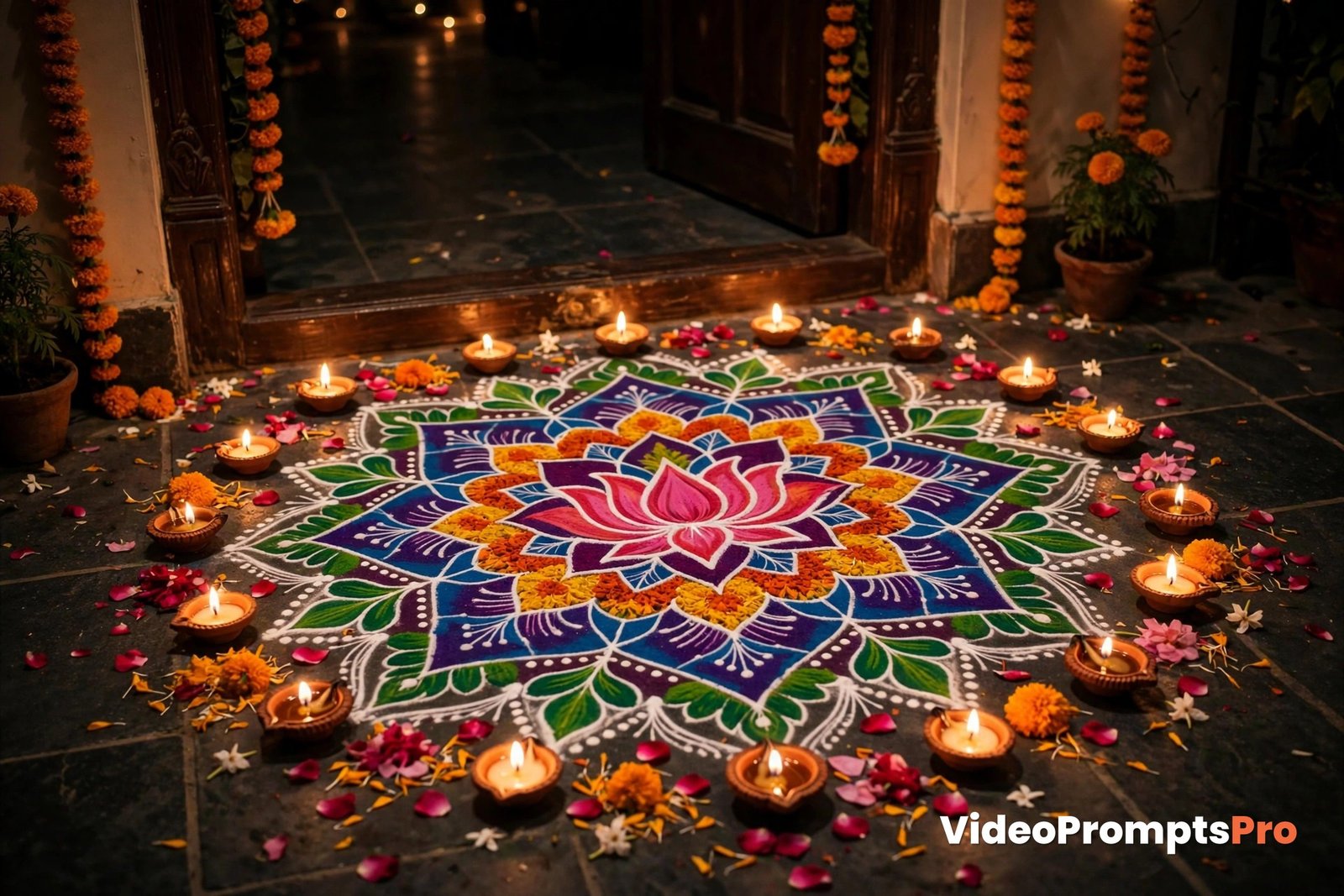
The third mistake is vague lighting. Words like beautiful light tell the model nothing. Warm golden light, deep blue night sky and glowing fairy lights tell it exactly what to paint.
Fix it by naming the light source and the colour. Diya light is warm and close, fairy lights are soft and scattered, and fireworks are bright and brief. Each one creates a different mood.
The fourth mistake is the wrong aspect ratio. A wide prompt pasted into a vertical video will crop the family or the fireworks, and a vertical prompt stretched wide will look empty.
Fix it by choosing the format before you generate. Decide where the clip will be shared, then write the ratio into the prompt, as the worked example above does.
The fifth mistake is copying a prompt without adapting it. A prompt written for someone else’s photo or scene will not match your faces, your balcony or your rangoli.
Fix it by treating every generated prompt as a draft. Change the subject, the setting and the action to match your own scene before you generate.
Pro Tips for Better Diwali Results
Start with light, not with objects. Decide whether your clip glows warm from diyas, sparkles from fireworks, or shines from fairy lights, and build the rest of the scene around that one light.
Use real festive detail, not generic decoration. Named details such as clay diyas, marigold garlands and a rangoli pattern on the floor read as Diwali instantly, while vague festive decor could belong to any celebration.
Keep the camera slow. A slow pan or a gentle push in lets the viewer enjoy the glow, while a fast move turns flames and fireworks into a blur.
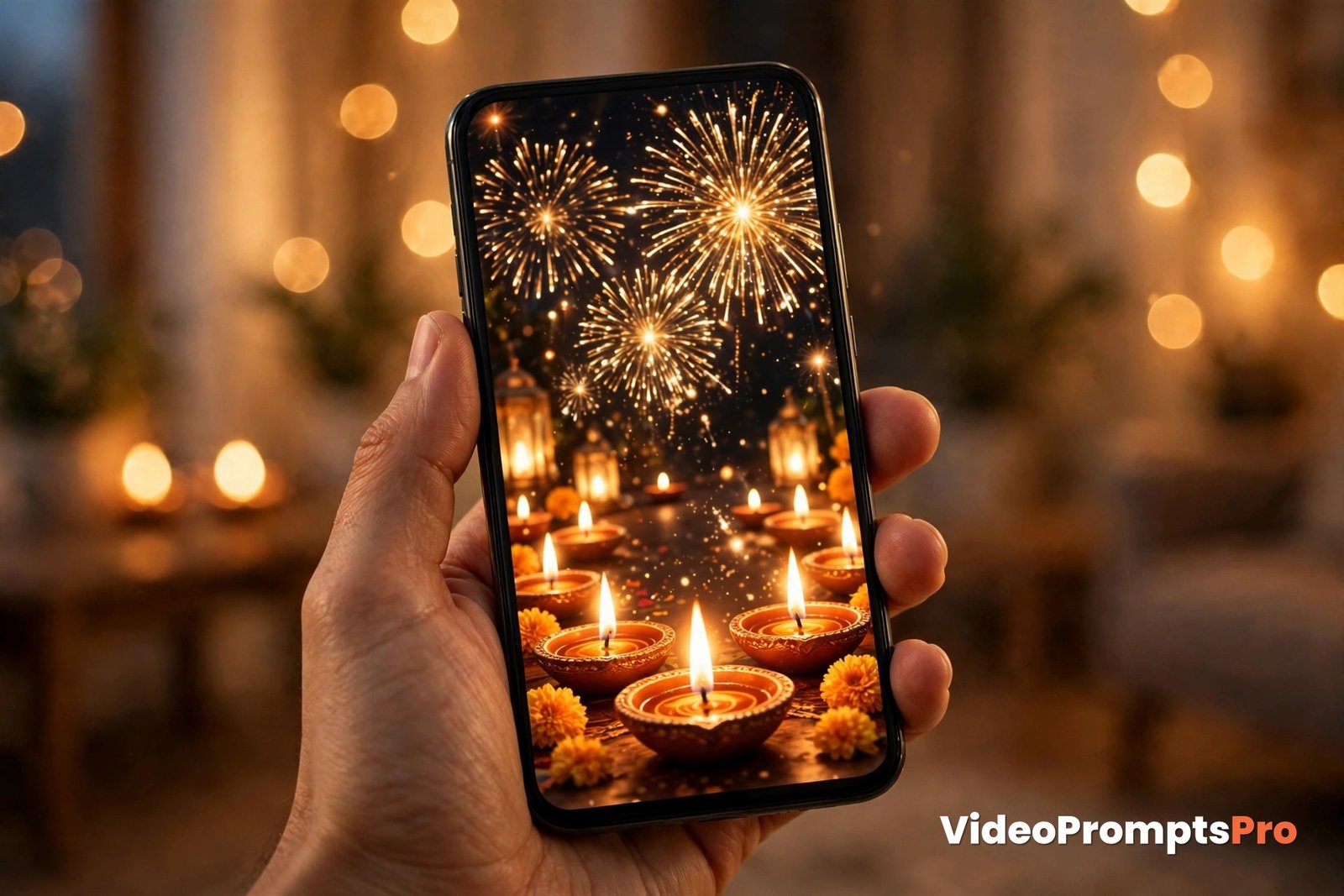
Plan your greeting for the screen it will live on. Vertical 9:16 is ideal for Reels and WhatsApp status, where most festive greetings and wishes videos are watched on a phone held upright.
Test one clip before you make a batch. One good test tells you how your chosen model handles flames, faces and rangoli, and it saves you from repeating the same flaw across ten clips.
For photo animation, pick your best photo, not your busiest one. A clear photo of a decorated balcony or a family with diyas animates far better than a crowded shot with too many people and lights.
End on a warm frame. Since many greeting clips loop or freeze on the last frame, make sure the final moment shows smiling faces and glowing diyas, not a firework fading to black.
If you want outside inspiration for festive video styles, see this guide to AI Diwali video generation and this cinematic Diwali festival of lights video prompt example, then rewrite any idea you borrow in your own words.
FAQ
Can I use an ai video prompts generator for diwali videos for a WhatsApp status?
Yes. Choose vertical 9:16, keep the clip to 5 to 10 seconds, and use one clear action such as lighting diyas, so it reads well on a phone screen.
Which AI model is best for Diwali videos with sound?
Veo 3 is a strong choice when you want music or festive sound built into the clip, while Flow suits smooth cinematic camera moves across a decorated scene.
Can I animate a Diwali photo I already took?
Yes. Use an image to video model, upload a clear photo, and describe one gentle motion, such as flames flickering or fireworks bursting in the distance.
Why does my rangoli look blurry in the video?
Fast camera movement distorts fine patterns. Use a slow pan or a still camera, and keep the rangoli as a supporting detail rather than the moving focus.
How long should a Diwali greeting video be?
For greetings and wishes videos, 5 to 10 seconds is ideal. It is long enough for one warm moment, and short enough to stay sharp and shareable.
Do I need to write the prompt myself?
No. Type your idea into the generator, pick your model and format, and it will shape your words into a complete prompt you can paste and adjust.
Conclusion
A great Diwali video starts with one warm idea, not a long list. Pick your scene, name one action, describe the light and the motion, and let the generator shape it into a prompt your model can follow.
Try the worked example above with your own family scene, test one short clip first, and adjust a single detail at a time. That simple habit will give you festive clips that glow, move gently and feel made for the people you send them to.
Open the generator, type your Diwali idea, and make your first greeting clip while the festival is still fresh in your mind. Your next celebration video will be better for it.
SEO Expert & Contant Writer