
Intro
Typing a good idea into Grok is easy. Turning that idea into a clear, bold video prompt is the hard part, and that is exactly where an ai video prompts generator for grok helps.
Instead of staring at a blank box, you describe your scene in plain words. The generator shapes it into a structured prompt with subject, action, camera, lighting, motion and native audio, ready to paste into Grok Imagine.
In this guide, you will learn what the generator does for Grok, how to use it step by step, and how to fix a weak result. One full worked example shows the whole process from idea to finished prompt.
What the AI Video Prompts Generator Is and What It Does for Grok
An ai video prompts generator for grok is a simple tool that turns a rough idea into a complete video prompt. You answer a few short fields about your scene, and it writes the prompt for you in the order video models understand best.
For Grok, that order matters a lot. Grok Imagine video generation works best when the prompt names one clear subject, one main action, a setting, a camera move, lighting and, when needed, sound. A vague line like “make a cool dance video” leaves too many choices open. A structured prompt closes those gaps before you generate.
The ai video prompts generator for grok on VideoPromptsPro is built for exactly this job. You describe what you want, choose your model, and it gives you a clean prompt you can copy into Grok. It does not replace your creativity. It organises it, so Grok spends less time guessing and more time rendering the scene you pictured.
The tool supports several models, and Grok comes first in this guide because it is the focus here. The Supported AI Models are Grok, Flow, Veo 3, Gemini, Sora and Kling. If you later switch tools, the same prompt structure still works, with small tweaks for each model. You can explore more text to video ideas in the text to video prompt library when you want fresh starting points.
Why does Grok need this help? Because Grok Imagine is built for speed and bold, expressive clips. It generates video fast, often in well under a minute, and it creates native audio in the same pass, so music, sound effects and ambient sound arrive with the picture instead of being added later. A well built prompt acts like a short shooting script. It tells Grok who is in the frame, what they do, where they are, how the camera moves and what the scene should feel like.
Short clips are the sweet spot here. Grok Imagine clips usually run from 6 to 15 seconds, so every word must earn its place. The generator keeps your prompt focused on one moment rather than a whole story. That single moment approach is the reason the results look sharper, punchier and more intentional than a long, rambling description.
How to Use the AI Video Prompts Generator for Grok Step by Step
Follow these steps in order. Each one takes less than a minute, and together they turn a loose idea into a prompt Grok can follow.
Step 1: Start With One Clear Idea
Pick one moment, not a whole film. A street dancer freezing mid spin at golden hour is a moment. A day in the life of a dance crew is a film, and it will not fit in one short clip. Write your idea in one sentence first, then build around it.
Step 2: Select Grok as Your Model
Open the generator and select Grok from the model list. This matters because each model has its own strengths, clip lengths and style tendencies. Selecting Grok first lets the generator shape the wording, length and camera language for Grok Imagine output rather than a generic video tool. It also reminds you to include native audio cues, which Grok handles better than most models.
Step 3: Describe the Subject and the Action
Name the subject in detail. Instead of “a dancer”, write “a young street dancer in a red hoodie and white sneakers”. Then add one main action: spinning on one foot as the crowd watches. If you add three actions, Grok must split a few seconds across all of them, and none of them will look great. One action, done well, beats three actions done in a rush.
Step 4: Add the Setting, Camera and Light
Now add where the scene happens, how the camera moves and what the light looks like. A busy city square at golden hour, a slow tracking shot circling the dancer and warm low sunlight gives Grok a complete picture. These three details are often the difference between a flat clip and one that feels filmed. Name one dominant camera move only. Grok executes one move cleanly, while two competing moves usually produce compromised motion.
Step 5: Add Sound or Dialogue Only If It Helps
Sound is a real Grok strength, because audio is generated in the same pass as the video. Name the exact sounds you want: upbeat street music, clapping from the crowd, the scuff of sneakers on stone. Named sounds get rendered. A generic “with audio” cue does not help much.
Step 6: Generate, Copy and Paste Into Grok
Click generate, read the prompt once, and check that it still matches your idea. Then copy it and paste it into Grok Imagine. If the first clip is close but not perfect, change one detail at a time.
One Full Worked Walkthrough Example
Let us walk through a real example from start to finish. The idea is simple: a street dancer mid move at golden hour in a city square, with music and a small crowd watching. It is energetic, visual and easy for Grok to render in a short clip.
Start with the plain idea: “a dancer in a city”. That is too thin on its own. The generator expands it by asking for subject detail, setting, camera, light, motion and sound. The answers shape a prompt that reads like a shooting script, not a wish list.
Here is the kind of prompt the generator produces for this idea. It is one prompt only, for one clip, and it shows the full structure in action:
A young street dancer in a red hoodie and white sneakers spins on one foot in the middle of a busy city square at golden hour. Warm low sunlight washes across stone paving and shop fronts while a small crowd claps around the edges of the frame. The camera slowly tracks in a circle around the dancer, keeping him sharp as the background blurs into motion. Upbeat street music plays with rhythmic clapping and the soft scuff of sneakers on stone. Bold, energetic, cinematic mood, realistic style, smooth natural motion, vertical 9:16 framing.

Notice what this prompt does. It names the subject, gives him one action, sets the scene, moves the camera in one clear circle, adds light, mood, sound and aspect ratio. Nothing in it fights for attention. Each sentence supports the same moment.
Now imagine pasting this into Grok Imagine. If the spin looks too fast, you change one thing: “spins slowly” instead of “spins”. If the light looks harsh, you change “golden hour” to “soft warm evening light”. Small edits like these are how you steer Grok without rewriting the whole prompt from scratch.
This is also why the generator is faster than writing from zero every time. You are not guessing at structure. You are filling a proven structure with your own idea, then refining the result. Grok’s fast generation makes this loop even better, because you can test several small variations in the time another model takes for one clip.
Grok Strengths and Limits for Video Prompts
Grok is fast, bold and great for quick social clips. You can go from idea to video in well under a minute, without learning editing software or filming anything yourself. That speed makes it ideal for social posts, short ads, storyboards and fun experiments where you want to test many ideas quickly.
Its native audio is another strength. Grok Imagine generates background music, sound effects, ambient sound and even short spoken lines in the same pass as the picture. When you name the sounds clearly, the clip arrives feeling finished rather than silent.
Grok also handles energetic, atmospheric scenes well: dancers, street scenes, animals, travel moments and stylised product shots. It reads atmospheric language as motion direction, so words like windswept, golden hour glow and crowd energy push the movement, not just the look.

Still, Grok has real limits, and honest expectations save frustration. Clips are short, so complex stories must be split into separate shots. Fine details like hands, text on screen and very fast action can look imperfect. Very long prompts do not always help, because extra words can dilute the main action instead of sharpening it.
Consistency is another limit to plan around. The same prompt may give slightly different results each time, and keeping the same character identical across many clips takes care and repeated tries. Reference images can help here, since Grok can hold a character or style across scenes when you give it a starting image. For a series, keep your character description word for word the same in every prompt.
The practical answer is to play to the strengths. Use Grok for short, bold, energetic moments with clear sound. Use the generator to keep each prompt tight.
Common Mistakes and Fixes
Most weak Grok clips come from the same few mistakes. The good news is that each one has a simple fix, and the generator helps you avoid most of them before you even generate.
Mistake 1: Too many actions in one clip. A prompt that asks a dancer to spin, jump, wave and pose in ten seconds will look rushed. Fix it by keeping one main action per clip and saving the rest for the next shot.
Mistake 2: A vague subject. “A person” gives Grok nothing to hold onto. Fix it with two or three concrete details: age group, clothing, expression or role. Specificity creates consistency.
Mistake 3: No camera direction. Without camera wording, Grok chooses for you, and the result can feel random. Fix it with one simple move: slow push in, gentle tracking shot, steady wide shot or close up. One move is enough.
Mistake 4: Overlong prompts. A 300 word prompt is not automatically better than a 100 word prompt. Extra adjectives often blur the main action. Fix it by cutting anything that does not change what the viewer sees or hears.
Mistake 5: Changing everything after a miss. If a clip is close, do not rewrite the whole prompt. Fix one element, regenerate, and compare. Grok’s speed makes this easy, but only if you change one variable at a time.
Mistake 6: Ignoring aspect ratio and format. A vertical social clip and a wide cinematic clip need different framing words. Fix it by deciding the format before you write, then adding “vertical 9:16” or “wide 16:9” framing language that matches where the video will be posted. Grok composes differently per ratio, so generate at the right aspect from the start.
Mistake 7: Vague sound cues. Writing only “with audio” wastes Grok’s native audio strength. Fix it by naming the sounds: street music, crowd claps, ocean waves, cafe chatter. Named sounds get rendered, generic ones do not.
Pro Tips for Better Grok Video Prompts
Start simple, then layer. Write the shortest version of your prompt first, generate it, and only add camera or sound detail if the result needs it. This keeps your base clean and makes each change easy to judge.
Repeat your anchors. If you make a series, repeat the same subject description, colour palette and lighting words in every prompt. Repeated anchors are the simplest way to keep a series feeling connected.
Use strong verbs. “Spins”, “leaps”, “glides” and “crashes” give Grok clear motion to render. Weak verbs like “does” or “makes” leave motion unclear, and the clip often looks stiff as a result.
Describe light like a photographer. “Soft golden hour light” and “warm low sunlight” are more useful than “nice lighting”. Light shapes mood more than almost any other single detail, so spend a few words on it.
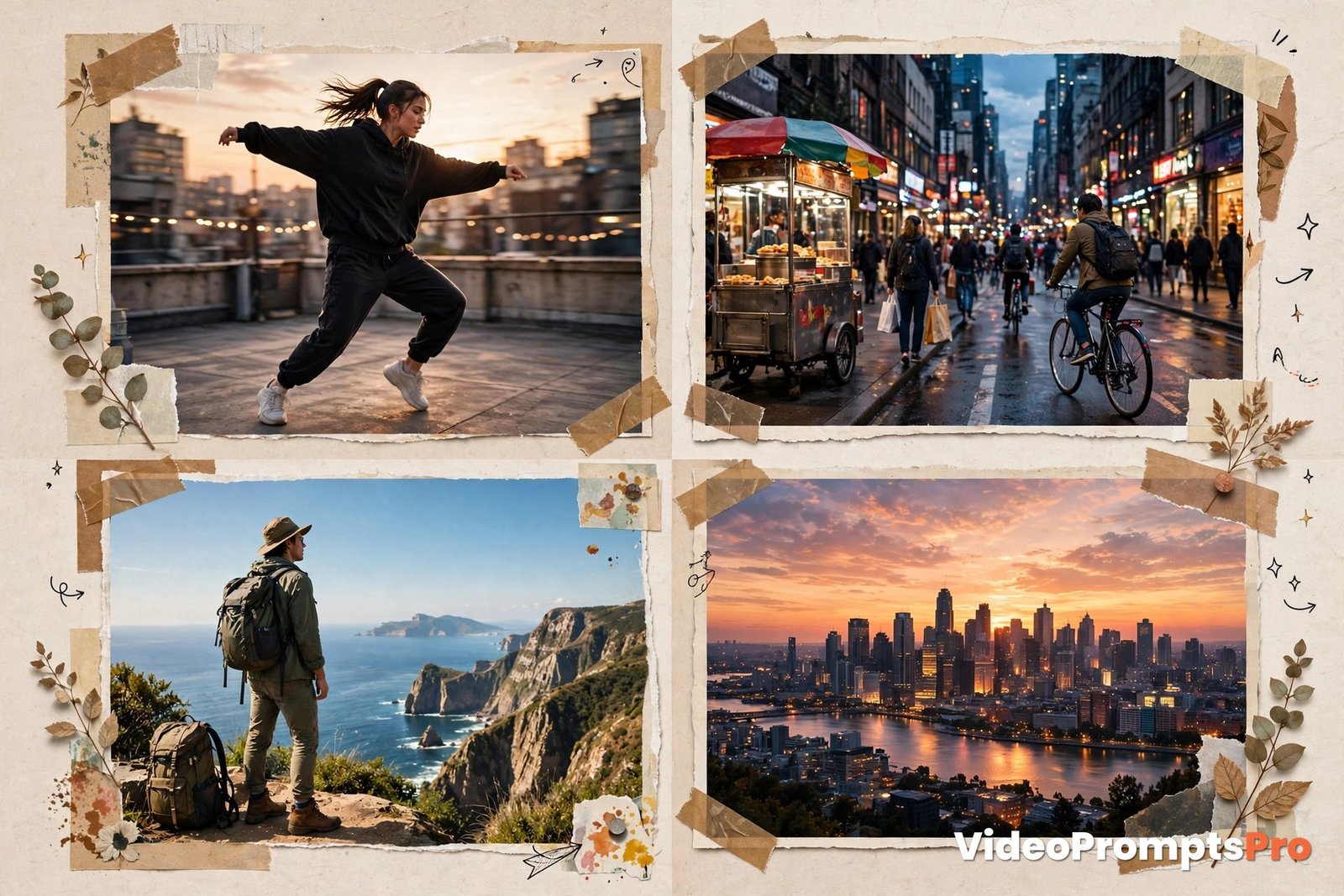
Use atmospheric words as motion cues. Grok treats words like windswept, bustling and glowing as directions for movement, not just decoration. Choose atmosphere words that match the motion you want.
Keep a prompt notebook. Save prompts that worked, with a note about what made them work. Over time, you build your own library of proven structures, and each new idea gets faster to write.
FAQ
What is an ai video prompts generator for grok?
It is a tool that turns a plain idea into a structured video prompt for Grok, with subject, action, setting, camera, lighting, motion and sound arranged in a clear order.
Do I need to know video terms to use it?
No. You describe your scene in everyday words, and the generator adds the structure. Camera and lighting options are written in plain language you can pick from.
How long should a Grok video prompt be?
Most strong prompts run about 80 to 150 words. That length gives Grok enough detail without burying the main action under extra description.
Can the generator write prompts for other models too?
Yes. The Supported AI Models include Grok, Flow, Veo 3, Gemini, Sora and Kling, so you can reuse the same idea with small tweaks for a different model.
Does Grok generate audio with the video?
Yes, Grok Imagine generates native audio in the same pass, including music, sound effects, ambient sound and short spoken lines, when you name them in the prompt.
Why does my Grok clip look different from my prompt?
Short clips, vague subjects and stacked actions are the usual causes. Tighten the prompt to one action, add concrete subject details, and change one element at a time.
Is the generator free to try?
Yes, you can try the generator on VideoPromptsPro and test the prompt it writes in Grok before committing to a longer workflow.
Conclusion
Great Grok clips start before you press generate. They start with one clear moment, a concrete subject, a simple camera move, light that sets the mood and sound that is named, not assumed. The ai video prompts generator for grok puts that structure around your idea, so you spend less time guessing and more time creating.
Try it with the street dancer example above, then swap in your own idea. Keep one action per clip, name your sounds, repeat your anchors for a series, and refine one detail at a time.
For official guidance on Grok video generation, see the Grok Imagine API and the Grok Imagine API announcement from xAI. Both explain the same core idea in different ways: clear structure, specific subjects, one strong action and named audio make the best short clips.
SEO Expert & Contant Writer